When a product sells out on Shopify, the product page stays visible by default. Depending on your inventory settings, customers may or may not be able to add it to their cart. For many stores this is fine.
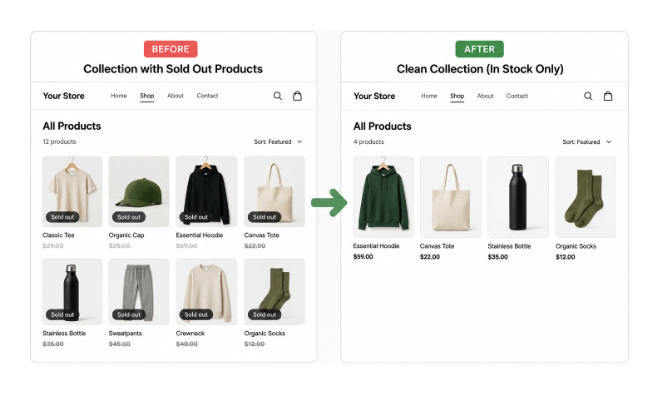
For others it creates a poor customer experience: people land on product pages for things they cannot buy, the collection looks stale, and you end up manually cleaning up your catalog after every sellout.
The good news is that Shopify Flow includes a ready-made template specifically for this. You can activate it in a few minutes and Shopify handles the hiding automatically from that point on. This guide covers exactly how to set it up, what it will and will not do, and your alternatives if Flow is not the right fit.
How Shopify Handles Out-of-Stock Products by Default
When inventory reaches zero on a tracked product, Shopify marks it as sold out. What happens to the product's visibility depends on a setting you control per product.
In the Inventory section of each product, there is a setting called Continue selling when out of stock. If this is checked, Shopify allows customers to add the product to their cart even when inventory is zero.
If it is unchecked, the Add to cart button becomes unavailable when stock hits zero, but the product page remains live and the product stays visible in collections.
Key distinction: Neither default behaviour automatically hides or unpublishes the product. Hiding a product when it sells out is not a default Shopify behaviour — it requires you to set it up manually.
Using Shopify Flow to Hide Out-of-Stock Products
Shopify Flow is Shopify's built-in automation tool, available on all plans at no additional cost. It includes a pre-built template specifically for hiding out-of-stock products that is ready to activate with minimal configuration.
The template uses a trigger based on inventory changes. When inventory updates in your store, the workflow checks whether any variant of the affected product still has stock across all locations. If all variants are out of stock everywhere, the workflow unpublishes the product from your Online Store.
Flow also has a template for the reverse action: republishing a product when at least one variant comes back into stock.
To find and install these templates, go to your Shopify admin, click Apps, then Shopify Flow. In Flow, browse the templates or search for "out of stock." You will find the template called "Hide out of stock products from your online store and republish when they have at least one variant with inventory." Click Use template and follow the prompts to activate it.
The workflow activates and runs automatically from that point forward. You do not need to do anything else for it to apply to future stock changes.
What the Flow Template Actually Does
It is worth being specific about what this workflow does and does not do.
It unpublishes the product from the Online Store sales channel. This removes it from your storefront, your collections, and your search results. Customers cannot browse to the product.
It does not delete the product. The product remains in your Shopify admin in full. All its data, variants, images, and settings are intact.
It does not affect other sales channels. If you sell through POS, the Buy Button, or any other channel, those are not touched by this workflow. The product may still appear on those channels depending on their own inventory behaviour.
It does not archive the product. Unpublishing and archiving are different things in Shopify. An unpublished product can be republished instantly. An archived product requires being unarchived first.
It runs per product based on total inventory across all locations. If you have a product with three variants, it only unpublishes when all three variants are out of stock everywhere. If one variant still has stock, the product stays visible.
If you need to hide products based on stock at a specific location only — for example, hiding a product when your primary fulfilment location is empty even if another location still has units — that requires a modified workflow with location-specific conditions. The article on controlling Shopify product visibility by location-specific inventory covers that case in detail.
For merchants selling bulk goods in multiple package sizes — such as tea in 10g, 30g, and 50g bags drawn from the same bulk stock — this creates a specific challenge: a larger bag size may need to be hidden before all variants are out of stock, because you no longer have enough bulk material to fill it. The article on tracking bulk inventory by weight in Shopify covers how to manage this situation and where Flow's per-variant trigger fits into that workflow.
During high-traffic sale periods, products selling out faster than Flow can process the hide action is also a real risk. If you are preparing for a major seasonal promotion, the article on preventing overselling during a Shopify seasonal sale covers how to combine stock buffers, inventory settings, and Flow to protect against both overselling and stale storefront listings.
What Happens When Stock Is Replenished
If you activate the full template that includes the republish side, the workflow watches for inventory updates. When a product that was previously unpublished due to zero stock receives new inventory, the workflow republishes it to your Online Store automatically.
This means restocking a product in your inventory management system automatically makes it visible again on your store. No manual republishing step is needed.
If you only activated the hide side and not the republish side, you will need to manually republish products after restocking. This is a common oversight. When setting up the Flow template, check whether it includes both directions or just one.
Limitations of the Flow Approach
The Flow template works well for straightforward cases but has some gaps worth knowing about.
Important limitation: The Flow approach works well for straightforward use cases but has one gap — it acts only on inventory updates. If inventory data comes from an external system and syncs with a delay, the hide action may also be delayed.
It does not distinguish between intentional zero inventory and a sellout. If you set a product's inventory to zero manually because you are discontinuing it or holding stock, the workflow will unpublish it just as it would for a genuine sellout. You need to be aware of this if you manage inventory adjustments manually.
If the product is still worth keeping visible while it is out of stock, a back-in-stock workflow may be more useful than hiding it. In that case, removing the "unavailable" label from Shopify variant dropdowns can make it clearer that customers can still select the sold-out option and request a notification.
It does not work if inventory tracking is not enabled. For the workflow to detect a zero inventory event, the product must have Track quantity enabled in the Inventory section. Products with inventory tracking turned off do not generate the inventory update events that Flow listens to.
Hiding Products on a Schedule Rather Than by Inventory
Sometimes the need is not inventory-based at all. You want to hide a product after a certain date, or after a selling window closes, regardless of stock levels. That is a scheduling problem rather than an inventory automation problem, and Flow handles it differently.
For date-based or time-based hiding, you would use Flow's Scheduled time trigger instead of an inventory trigger. Set the workflow to run at your intended close time, find the relevant products by tag or ID, and unpublish them. This is covered in more detail in the article on scheduling product availability in Shopify. If your products sell in timed windows such as drops or pre-orders with a closing date, running a timed product drop in Shopify covers that pattern specifically.
If you need both conditions, hide when out of stock AND hide after a certain date, you need two separate workflows covering each trigger.
Managing Out-of-Stock Visibility Without Flow
If you prefer not to use Flow, there are a few alternative approaches.
Manual cleanup. Go through your products regularly and unpublish anything that has sold out. For small catalogs with infrequent sellouts, this is often the simplest approach. Set a recurring calendar reminder to check once a week.
Inventory policy. Some merchants choose not to hide sold-out products at all, and instead use the sold out state as a signal. A visible sold-out product can communicate scarcity and demand. If you add a back-in-stock notification option to your product pages, a sold-out but visible product becomes a lead capture mechanism rather than dead weight in your catalog.
STOQ handles back-in-stock alerts, preorders, and demand insights — giving you visibility into which sold-out products have the most pent-up demand so you can prioritise restocking decisions.
One small thing worth fixing alongside this: by default Shopify adds an "unavailable" label to out-of-stock variant dropdowns, which discourages customers from clicking and triggering the notification.
Removing that label takes under a minute and meaningfully improves back-in-stock capture rates. You can also track which products are currently out of stock across your whole catalog by syncing your inventory to Google Sheets, which gives you a clean view without having to click through each product individually.
If you also use purchase orders to restock sold-out products, understanding how Shopify's incoming inventory from POs and transfers works helps you cross-reference what is out of stock against what is already on order.
A scheduling or inventory app. Several apps in the Shopify App Store handle out-of-stock product visibility as part of broader inventory automation. Schedora covers the scheduling side and can work alongside inventory workflows to give you full control over when products appear and disappear.
What to Do With Products After They Are Hidden
When a product is unpublished by Flow or manually, it sits in your admin in an unpublished state. Left unmanaged, you can end up with a growing backlog of unpublished products that are neither active in your store nor properly resolved.
Decide on a process for what happens after a product goes out of stock and gets hidden. If it will be restocked, let the republish workflow handle bringing it back. If it will not be restocked, archive it so it is out of the way but still accessible in your records.
If it is being discontinued entirely, the article on cleaning up discontinued products in Shopify covers the full decision framework for choosing between Archive, Unlisted, Draft, and Delete — including the SEO and order history implications of each.
A clean admin makes it easier to see what is actually live in your store at any given time, which matters more as your catalog grows.