If your Shopify store has hundreds or thousands of discontinued products, cleaning them up is not as simple as deleting them.
You are balancing three competing goals:
- keeping the admin manageable
- preserving useful SEO value
- retaining historical product and order data
Shopify gives you five options: Active, Draft, Unlisted, Archived, and Delete. Each one behaves differently for storefront visibility, admin organisation, SEO, and reporting.
For most stores, the right default is simple:
Archive discontinued products by default. Then add redirects only for products that still receive search traffic or backlinks.
Quick Comparison
| Status | Visible on Storefront | Purchasable | Keeps Admin Clean | URL Still Live | Best Use Case |
|---|---|---|---|---|---|
| Active | Yes | Yes | No | Yes | Currently sold products |
| Draft | No | No | Partial | No (404) | Products being edited |
| Unlisted | Direct link only | Yes | No | Yes | Private/direct-link sales |
| Archived | No | No | Yes | No (404) | Discontinued products |
| Delete | No | No | Yes | No | Permanent removal |
What Each Status Actually Does
Active
The product is fully live on your storefront and visible in collections, search, and recommendations.
For discontinued products, leaving them Active usually creates clutter both operationally and customer-facing.
Draft
Draft products are hidden from all sales channels and return a 404 response.
However, they still appear throughout the Shopify admin, including exports, bulk editors, and many app workflows. Draft is useful for products being worked on internally, not long-term discontinued cleanup.
Unlisted
Unlisted keeps the product live and purchasable through a direct URL while hiding it from storefront discovery surfaces like collections and search.
The important limitation: Unlisted products still behave like Active products inside the admin. They continue appearing in product lists, exports, and operational workflows.
That makes Unlisted useful for:
- wholesale products
- influencer links
- private products
- direct-link sales
But usually not for discontinued backlog cleanup.
Archived
Archived products are removed from sales channels and moved into a separate Archived tab in Shopify.
Customers cannot access the product, and the URL returns a 404 response. But Shopify still retains all underlying data, including:
- variants
- images
- metafields
- order history
- historical reporting
This is why Archived is the best fit for most discontinued products. It cleans the working admin without permanently losing data.
Delete
Deleting permanently removes the product from Shopify.
Historical order line items still exist, but the actual product record is gone and cannot be restored.
Deleting is irreversible. If there is any chance the product data may be useful later, archive instead.
The SEO Side of Discontinued Products
Not every discontinued product is worth preserving for SEO.
In practice, products with:
- zero impressions
- zero clicks
- no backlinks
- no future inventory
can usually be archived safely with little SEO impact.
Products that still receive traffic or have external links deserve more attention before cleanup.
For those products:
- create a 301 redirect
- point it to the closest replacement or collection
- then archive the product
Avoid redirecting everything to the homepage. A relevant replacement preserves more SEO value and creates a better user experience.
How to Bulk Archive Products
Shopify supports bulk archiving directly from the Products screen.
Filter products by:
- status
- inventory quantity
- product type
- tags
- collections
Select the matching products, click More actions, then click Archive products.
For very large catalogs, CSV imports are usually faster. Export products, update the Status column to archived, then reimport the file.
What Happens to Historical Orders and Reports?
Archiving does not affect historical order data or reporting.
Orders still display:
- product names
- variants
- prices
- historical line item information
Sales reports also remain intact.
Deleting is different. The order rows remain, but the connection to the product record disappears permanently. That is one of the main reasons most stores should archive instead of delete.
A Practical Cleanup Framework
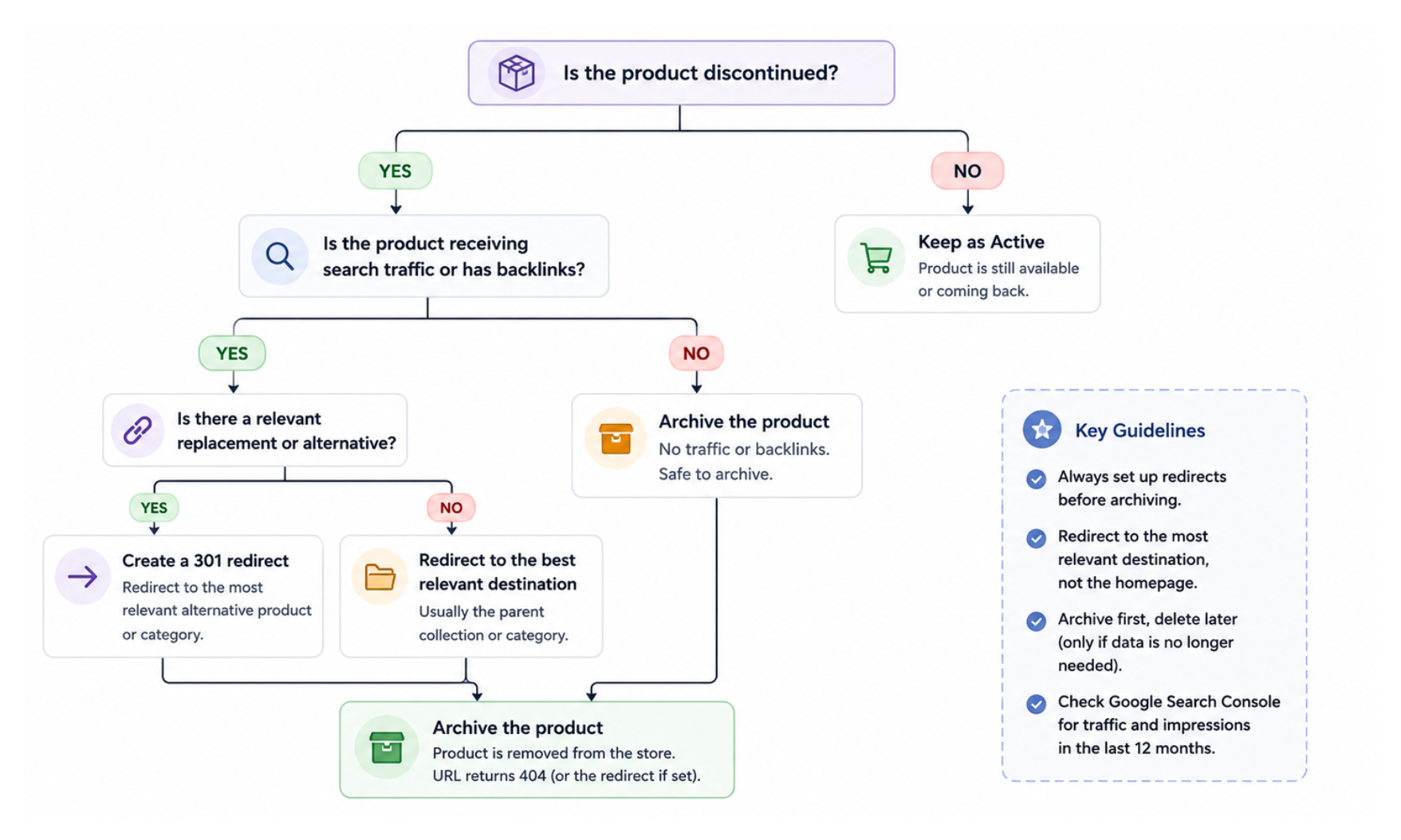
For large catalogs, reviewing products one by one is unrealistic. A tiered approach works better.
Tier 1: Archive Immediately
Products with:
- zero impressions
- zero stock
- no future restock planned
No redirect needed.
Tier 2: Redirect Then Archive
Products with:
- search traffic
- backlinks
- meaningful impressions
Create redirects first, then archive.
Tier 3: Manual Review
Review individually:
- former bestsellers
- high-traffic products
- products that may return later
These may deserve redirects, preservation, or temporary Unlisted status.
One thing to check before archiving any product in Tier 2 or Tier 3: whether it has open purchase orders against it. If a product has Incoming quantities from an active PO, archiving removes it from the storefront but the PO remains open and those incoming quantities stay in your inventory data. Cancel or close any open POs for products you are discontinuing before archiving them.
The article on how Shopify purchase orders, transfers, and incoming inventory work covers how to read and manage open PO states.
Do not start by deleting products. Archive first. You can always delete archived products later, but permanent deletion cannot be undone.
This cleanup process also works well alongside automated stock management workflows. If you later automate hiding or archiving sold-out products using Shopify Flow, you can prevent the same discontinued backlog from building up again.