Shopify has a built-in collection at /collections/all that automatically lists every visible product in your store. You cannot edit its conditions or add filters to it. It simply pulls everything in.
This becomes a problem when you have products that should not be visible to all customers. Common situations include:
Products only available to wholesale or trade buyers
Items reserved for local pickup customers only
Products that are intentionally unlisted but still active (sold via direct link)
Bundles or custom items that should not appear in general browsing
Out-of-season stock you have not archived yet
A New Arrivals collection or other curated collection that you want to surface separately rather than mixing into the general catalog
You want those products accessible to certain customers but invisible to general store visitors browsing your catalog.
The typical advice is to edit your Liquid theme files to filter the all collection, or to install a paid app. Neither is necessary. Shopify's built-in automated collection system gives you a cleaner solution.
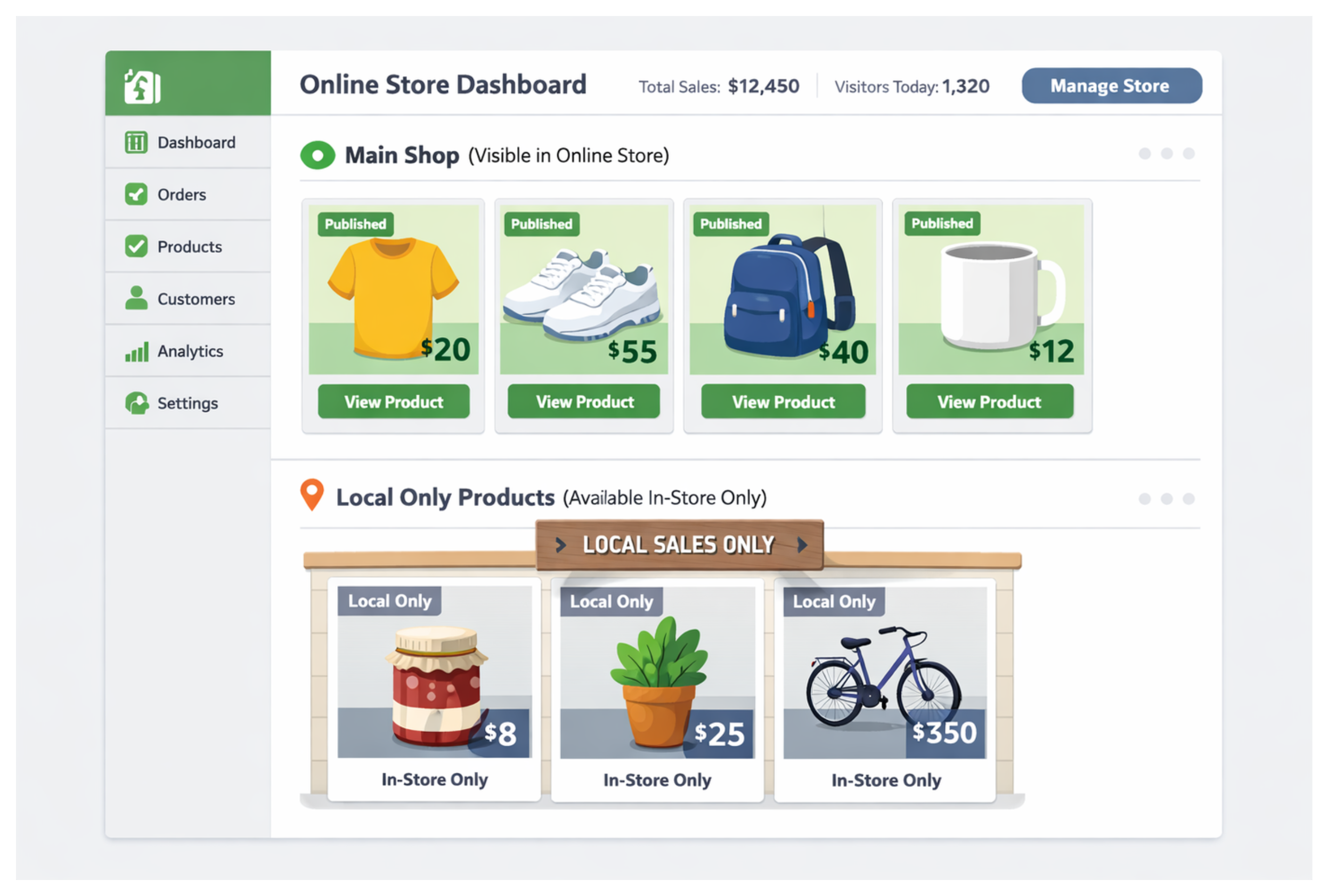
Why You Cannot Edit the Default All Collection
Key insight: Shopify creates /collections/all automatically. It is not a collection you created, so it does not appear in your Collections list in the admin.
Because it is system-generated, you cannot add conditions to it, change its sort order in a meaningful way, or exclude products from it directly. Shopify gives you no interface to manage it.
To control what appears at /collections/all, create your own collection with the same all handle. That is what the approach below does.
The Solution: Create Your Own All Collection and Override the URL
Shopify lets you create a collection with the handle all. If a collection with that exact handle exists in your store, Shopify serves it at /collections/all instead of the system-generated version. Your collection takes over the URL completely.
This is the key insight. You are not filtering or modifying the default all collection. You are replacing it with one you control.
Here is how to set it up.
Step 1: Tag Products You Want to Exclude
Before creating the collection, decide how you want to identify the products that should be excluded. The easiest approach is to add a tag to the products you want hidden from general browsing.
For wholesale-only products, a tag like wholesale-only works well. For local pickup products, local-only. For unlisted items, unlisted. Choose something clear so you or anyone else managing the store knows what the tag means.
Go to each product you want to exclude and add the tag in the Tags field on the product page. Save.
Alternatively, you can take the opposite approach and tag products you want to include rather than exclude. A tag like shop or public on every product that should appear in the main catalog. The collection condition then becomes: show products where tag equals shop. Either approach works. The include approach requires tagging more products upfront but makes the intent very explicit.
Step 2: Create an Automated Collection With the Handle "all"
Go to your Shopify admin. Click Products in the left sidebar, then Collections. Click Create collection.
Name the collection whatever you want customers to see. "All Products" or "Shop All" works. The name does not need to be exactly "all" because Shopify uses the handle, not the name, for the URL.
Under Collection type, choose Automated.
Now set the condition based on your tagging approach:
If you tagged products to exclude: Set the condition to Product tag is not equal to wholesale-only (or whatever tag you used). This includes everything except tagged products.
If you tagged products to include: Set the condition to Product tag is equal to shop (or whatever tag you used). This includes only tagged products.
Save the collection. Shopify will generate a handle from the collection name automatically. For example, "All Products" becomes all-products.
You need to manually change this handle to exactly all.
On the collection page, scroll down to the Search engine listing section and click Edit. Find the URL handle field. Delete whatever is there and type all. Save.
Your collection now lives at /collections/all and Shopify serves it instead of the system default.
Step 3: Update Navigation and Internal Links
If your store navigation links to /collections/all, it now points to your new collection, which is correct. No change needed there.
Check any other places in your store that might link to the all collection. Theme buttons like "Shop All" or "View All Products", calls to action on the homepage, and email campaign links sometimes point to /collections/all directly. Since the URL is now yours to control, all of those links continue to work and show only the products you want.
How to Handle the Excluded Products
Products excluded from the all collection are still active in your store. They are not archived or hidden from Shopify. They can still be:
Accessed via their direct product URL
Added to a separate collection you share with specific customers
Found through search on your store if your theme's search includes all products
If you want excluded products to be completely unfindable by general customers, you need to handle each of these separately.
For direct URL access: Active products always have a live URL. There is no way to make a product active but prevent all URL access without custom theme code. If someone has the product URL, they can view and buy it. For most use cases (wholesale, local pickup), this is fine because you share the link only with intended customers.
For store search: Shopify's default search searches all active products regardless of which collection they appear in. If your theme uses Shopify's native search, excluded products will still appear in search results. To prevent this, you can add the exclusion tag to your theme's search filter logic, but that does require a code edit. Alternatively, some themes and search apps let you limit search results by collection.
For separate wholesale or local access: Create a dedicated collection for your excluded products using the same automated condition (tag equals wholesale-only). Share the direct collection URL with the relevant customers. This gives them a browsable catalog of their specific products without them appearing in the main store.
What Happens When You Add New Products
Once this system is in place, your workflow for new products is simple.
If a new product should appear in the main store, add it with no special tag (or add the include tag, if you went that route). It automatically appears in your all collection.
This pairs well with Shopify's native scheduled publishing. You can schedule exactly when a new product goes live so it enters the all collection at the right moment rather than appearing immediately when you create it.
If a new product should be excluded, add the exclusion tag. It automatically stays out of the all collection.
No manual collection management needed for either case.
Alternative Approaches Worth Knowing
Archiving the product: An archived product does not appear in any collection and is inaccessible by URL. This is appropriate for products you no longer sell, but not for products you want to sell to a specific group. Archived products cannot be purchased.
Draft status: A product in draft status is also inaccessible to customers. Same limitation as archiving for this use case.
Password-protecting a collection: Some apps let you add a password to a specific collection page. Customers who have the password can view the collection; others cannot. This works for wholesale access but adds friction and requires a paid app.
Shopify Markets and B2B features: Shopify Plus has native B2B catalog features that let you show different products and prices to different customer groups. This is the right option for a wholesale store that needs separate catalogs, but it requires Shopify Plus and costs much more than standard Shopify plans. For most merchants, the tagging approach above is enough.
Common Questions
Does this affect SEO? Your products are still active and indexable by Google even if they do not appear in the all collection. If you do not want excluded products to appear in Google search results, you would need to either set the product to draft status (removing it from search) or add a noindex meta tag to the product template for tagged products, which requires theme code.
Can I have multiple tiers of access? Yes. Use multiple tags: wholesale-only, local-only, vip-only. Create a separate collection for each tag. Share the relevant collection URL with each customer group. Your main all collection excludes all of them using multiple conditions: Product tag is not equal to wholesale-only AND Product tag is not equal to local-only.
Will this break if I change my theme? No. Collections and tags are data in your Shopify admin. Theme changes do not affect them. Your all collection and its conditions remain intact regardless of which theme is active.
What if a product belongs to multiple exclusion groups? The tag approach handles this naturally. A product can have multiple tags. Add all relevant exclusion tags to it and it stays out of the main collection as long as any of the exclusion conditions match.
If I exclude a product from the catalog, can customers still buy it if they find the direct URL? Yes. Unlisted or tag-excluded products are still purchasable via direct URL. If you need to restrict purchase to specific customers and not just collection visibility, you need checkout-level validation on top of the collection exclusion. The article on limiting a Shopify product to specific customers covers how to combine both approaches.