How to Flag and Block Problem Customers in Shopify

Dealing with a difficult customer once is frustrating. Dealing with the same customer repeatedly is worse. Shopify does not have a one-click block button, and no native setting prevents a determined customer from checking out entirely. But the tools that exist — tags, notes, Flow notifications, and account controls — give you enough to flag problem customers and act before anything ships.

For a hard block that actually prevents checkout, you need either a Shopify Plus Flow automation or a third-party app. This article covers the full range from lightest touch to most restrictive.

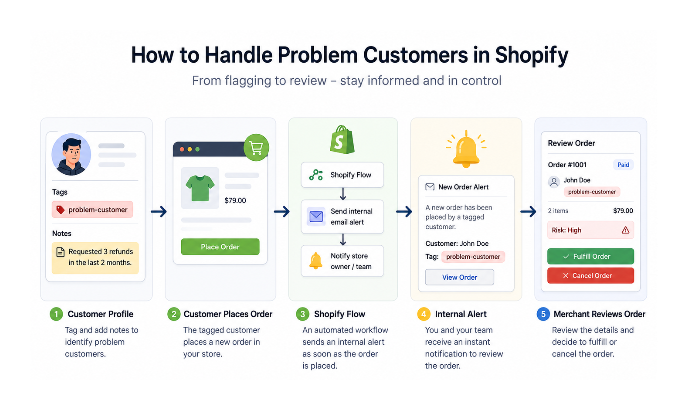
Customer flagging workflow in Shopify using tags, Flow alerts, and manual order review

Which Method Fits Your Situation

GoalNative ShopifyShopify PlusThird-party App
Add internal warningYesYesYes
Get notified when they orderYes, via FlowYes, via FlowYes
Hold orders for manual reviewYesYesYes
Auto-cancel ordersNoYes, via FlowDepends on app
Prevent checkout entirelyNoLimitedYes

The Native Approach: Tags and Notes

The two built-in tools for tracking problem customers are customer notes and customer tags. Both live on the customer profile and are never visible to customers.

Customer notes are free-form text fields on the customer profile. Go to Customers in your admin, open the customer profile, find the Customer note field, and write whatever context you need: what happened, when, what was decided. This note appears every time you open that profile and on any order they place.

Customer tags let you label customers with descriptive terms that appear on the profile and on their orders in your admin. Adding a tag like problem-customer, review-required, or no-refunds creates a visible label that travels with every order that customer places.

To add a tag, go to Customers, open the profile, find the Tags field, type the tag, and save.

On its own, a tag labels the customer but does not alert you when they order. The alert piece requires a Flow workflow.

Getting Notified When a Flagged Customer Orders

To receive a notification when a tagged customer places an order, use Shopify Flow. Flow is available on all plans at no extra cost.

The workflow:

Trigger: Order created

Condition: Customer has tag equals problem-customer

Action: Send an internal email or Slack message with the customer name, order number, and email address

This does not stop the order. It flags it for your attention before you process it. You then decide whether to fulfil normally, contact the customer first, cancel and refund, or take any other action.

To set this up, go to Apps, then Shopify Flow. Click Create workflow. Select the Order created trigger. Add a condition: Customer tags contains your flag tag. Add a Send internal email action. Activate the workflow.

For example: a customer has filed two chargebacks but continues placing orders. Tag them as problem-customer. The next time they order, Flow immediately alerts your team before anyone picks or ships anything. You decide what to do with that order before it moves.

This is the right approach for most stores dealing with high-maintenance or previously problematic customers. The order goes into your normal queue, a separate notification arrives telling you who placed it, and you decide what happens next before anything ships.

Holding Orders for Manual Review

For an additional layer, you can use manual payment capture to hold orders before money is collected.

Go to Settings, then Payments, and under your payment provider look for Payment capture. Set it to Manually capture payment for orders. Orders are authorised but payment is not collected until you manually capture it. This gives you a window to review any order before it becomes a financial transaction.

Manual payment capture applies to all orders, not just flagged customers. Enabling it means you need to manually capture payment for every order within the authorisation window (typically up to 7 days depending on the card issuer) or the authorisation expires. Only use this if you are reviewing all orders regularly, or combine it with a Flow automation that captures payment automatically for non-flagged customers.

Disabling the Customer Account

From the customer profile, click the three-dot menu and select Disable account. A disabled account prevents the customer from logging in to their existing account.

This only affects account login. It does not prevent the customer from checking out as a guest or creating a new account with a different email address. Disabling is most useful for accounts being used for abuse specifically through the account system: accessing order history, initiating returns through the portal, or exploiting account-specific benefits.

Requiring Login Before Checkout

If your store requires customers to log in before checking out, and a customer's account is disabled, that combination blocks them from purchasing under that account.

To require login before checkout, go to Settings, then Checkout. Under Customer accounts, select Accounts are required.

Requiring accounts for checkout adds friction for new customers and typically reduces conversion for first-time visitors from cold traffic. This setting makes most sense for stores with a defined existing customer base rather than stores actively acquiring new customers through paid ads.

Even with this setting enabled, a customer can create a new account with a different email address and continue purchasing. This is a deterrent rather than a hard block.

A Hard Block on Shopify Plus

On Shopify Plus, Flow can automatically cancel orders from customers with a specific tag before they are fulfilled. The workflow watches for orders from tagged customers and cancels them immediately with a custom message. This is the closest thing to a true block that Shopify's native tools offer on any plan.

On standard Shopify plans, Flow can notify you but cannot automatically cancel orders. The notification-and-manual-review approach is the native ceiling.

A Hard Block: Third-Party Apps

For a hard block on any plan, third-party apps work at the checkout level. When a blocked customer attempts to complete checkout, the app intercepts and prevents it, showing a custom error message before an order is created.

Apps that handle this include Blockify and Fraud Filter. Fraud Filter is Shopify's own free app, but note the distinction: it cancels orders after they are placed rather than preventing checkout. A transaction fee may still apply depending on your payment gateway, and the customer experience includes an order being placed and then cancelled. Apps that block at the checkout stage prevent the order from being created at all.

For most stores dealing with a small number of problem customers, the tag plus Flow notification approach is enough. These are usually not fraud cases requiring checkout prevention. They are high-maintenance customers where advance warning before processing gives you the control you need without adding friction to checkout for everyone else.

What to Do When a Flagged Customer Orders

Once your notification workflow is running, the response depends on what the issue has been.

For customers who are difficult but legitimate buyers, the alert gives you a moment to decide how to handle their order before doing anything. You might fulfil normally, add extra care to packaging and communication, or reach out proactively before shipping to head off issues.

For customers who have made fraudulent claims or chargebacks, cancel and refund their new order before any goods are shipped. Issue the refund immediately and communicate clearly in writing why the order is being cancelled. Document everything in the customer note for future reference.

For customers who have been abusive to you or your team, you are within your rights to refuse service. Shopify's terms of service allow merchants to cancel orders at their discretion. Document the reason in the customer note before cancelling.

Which Method Should You Use

If you want toUse
Leave internal context for your teamCustomer notes
Flag repeat offenders visiblyCustomer tags
Get alerted when they orderShopify Flow notification
Hold orders before payment is collectedManual payment capture
Stop account loginDisable account
Combine account disable with checkout requirementAccounts required setting
Auto-cancel orders without manual reviewShopify Plus Flow automation
Prevent checkout entirely on any planBlockify or similar app

For most stores, tagging customers and using Flow for alerts provides enough control without adding friction to checkout for everyone else. If you need to completely prevent specific customers from purchasing, a checkout-blocking app is the simplest option on standard plans. Shopify Plus merchants can automate much of this with Flow.

The article on evaluating high-risk orders in Shopify covers how to read Shopify's fraud indicators on specific orders, which is useful context if a problem customer also shows fraud signals on new orders. If you are seeing a surge of fraudulent orders for cheap products in rapid succession rather than a single problematic customer, that pattern is more likely a card testing attack. The article on Shopify card testing attacks and how to stop them covers that specific attack pattern and the steps to shut it down.