A product drop is a time-limited release. The product goes live at a specific moment, demand spikes, and then the window closes. Whether you are running a limited-edition item, a hype release, or a pre-order that closes on a specific date, the mechanics are the same: a precise start time and a reliable end.
Shopify's future publishing feature handles the start automatically. For the close, you have a couple of practical options. This article covers the workflow for both sides, including pre-orders with a cutoff date.
How the Publish Side Works
Shopify's future publishing feature lets you schedule exactly when a product becomes visible on your Online Store. You set a date and time on the product page and Shopify handles the rest automatically.
Critical requirement: The product must be set to Active status, not Draft. Draft products will not publish even if a scheduled date is set.
To set this up, open the product in your Shopify admin. Scroll to the Sales channels and apps section. Click the calendar icon next to Online Store. Choose your launch date and time, then click Schedule publishing and save.
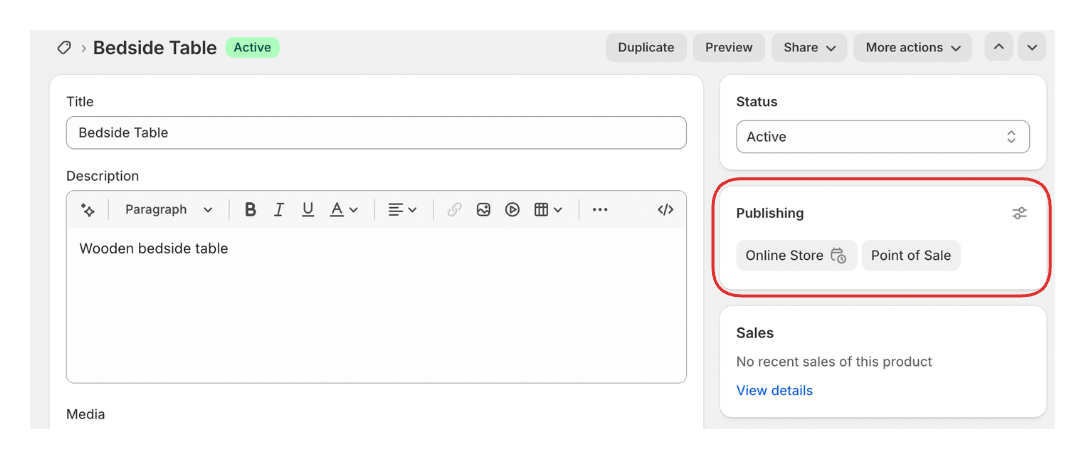
The product stays hidden until that exact moment. You do not need to be online when it launches.
A few things to confirm before your drop:
The product status must be Active. Check this before you schedule anything.
The time shown in the scheduler uses your store's timezone, set in Settings under Store details. If you are coordinating a launch with a specific customer timezone in mind, make sure your store timezone is set correctly or calculate accordingly.
Future publishing only applies to the Online Store channel. If you also sell through POS or the Buy Button, those channels are not affected by the scheduled publish.
Setting Up the Drop Listing in Advance
A common approach for drops is to create the product in advance, keep it hidden, and build anticipation before it goes live.
You can create the product with full details, images, description, and pricing, and set it to Active with a future publish date. Customers cannot see it in your store. You can share a direct product URL before launch if you want to build a teaser page, but the Add to Cart button will not work until the product is published.
Some merchants use a coming soon product page with a countdown timer for this. This requires either a theme that supports countdown elements or a separate app. The product itself can be hidden while a placeholder page or banner builds the anticipation.
Closing the Drop Automatically
Once a product is live, it stays live until you manually remove it or something else triggers it to come down. For a drop with a hard close, you have two good options to handle this automatically.
Shopify Flow. Flow is Shopify's automation tool available on all plans. You can create a workflow using the Scheduled time trigger set to your drop's close time. The workflow uses the Get product data action to find the product by tag or ID, then runs the Unpublish product action to remove it from your Online Store.
The limitation of this approach is that each close event requires its own Flow workflow. You create the workflow, activate it, and it fires once at the scheduled time. After that it sits inactive and needs to be deleted or deactivated manually. For occasional drops this is workable, though it adds setup overhead each time.
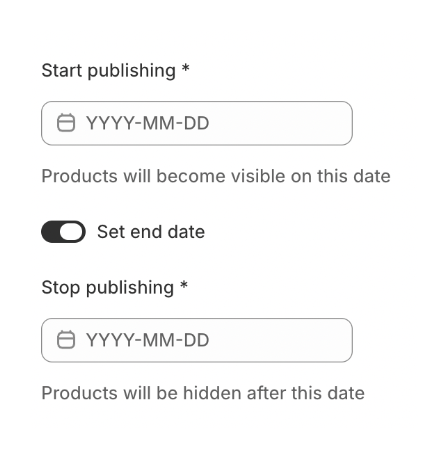
A scheduling app. Apps built for product scheduling let you set a start date and an end date on a product from a single interface. The app manages both actions automatically without needing separate Flow workflows for each event.
Pre-Orders With a Closing Date
Pre-orders are a variation of the drop model. The product is available to buy now, but the order will not be fulfilled until a later date. The selling window has a cutoff: orders placed before the date are accepted, orders after are not.
Shopify does not have a native pre-order mode. There is no setting that marks a product as pre-order or automatically closes pre-order selling on a specific date. The standard approach merchants use involves a few components:
Inventory as the cutoff. Set the inventory quantity to the exact number of pre-order units you are willing to accept. Enable inventory tracking and set the product to stop selling when out of stock. When the last pre-order unit is taken, the product automatically moves to sold out and the Buy button becomes unavailable. This handles a quantity-based cutoff but not a time-based one.
If you are ordering pre-order stock from a supplier using a purchase order, the article on how Shopify purchase orders and incoming inventory work covers how to track expected quantities as Incoming before they arrive, which helps you set realistic pre-order limits.
Date-based cutoff. If you want to close pre-orders at a specific date regardless of inventory, you need to unpublish the product at that time. The same options as above apply: manual unpublish, a Shopify Flow workflow, or a scheduling app.
Pre-order messaging. Shopify does not add any pre-order language to product pages automatically. You need to add it to the product description or use a theme that supports a pre-order button label. Some themes let you customise the Add to Cart button text per product using metafields, which is a simple way to display a Buy Now / Pre-order distinction. You can also send a custom order confirmation email for pre-order products that sets the right expectations immediately after purchase, without needing a paid app.
Inventory and Stock Considerations for Drops
For limited drops where stock is the constraint, set up inventory tracking on the product before launch. Go to the product, scroll to the Inventory section, check Track quantity, and set your available stock. Set the product to stop selling when out of stock.
When inventory hits zero, Shopify marks the product as sold out and the default Buy button becomes unavailable. This is an automatic hard stop based on quantity rather than time.
For drops where the constraint is time rather than quantity, inventory tracking alone is not the mechanism. A timed window needs the product to be unpublished at a specific time regardless of remaining stock.
The combination of both, a quantity limit and a time limit, requires both inventory tracking set up correctly and a scheduled unpublish at the drop close time.
Coordinating the Drop Announcement
The product scheduling handles the back end, but how you communicate the drop affects whether it actually creates the demand you want. Email and SMS campaigns timed to go out shortly before the drop opens are the most reliable way to drive immediate traffic. A popup on your storefront in the days before launch is another effective way to make sure existing visitors see the announcement without you needing to pay for an ad. Social media posts that go live at launch time can be pre-scheduled through most social platforms independently of Shopify.
If you are using a countdown timer on your site, make sure the time it displays matches your product's actual publish time in the correct timezone. A mismatch between your announcement and the actual launch time frustrates customers who show up at the wrong moment.
What to Check After the Drop
Once your drop closes, verify a few things:
Confirm the product is no longer visible on your storefront by opening your store in an incognito window and searching for the product.
Check your orders report to see the volume that came through during the window.
If you used Flow to handle the close, deactivate or delete the workflow so it does not run again unexpectedly if you reactivate it later.
If inventory ran out before your scheduled close time and the product sold out automatically, update your post-drop process to account for that in future planning. If you are running drops regularly or want to sell within a recurring weekly or daily window rather than a one-off event, the article on selling products on specific days or hours covers that pattern. For launching many products at once rather than a single drop item, bulk scheduling products in Shopify is the more relevant starting point.