Some businesses do not sell all week. A baker takes pre-orders on Tuesday and Wednesday for Friday delivery. A market stall sells online only on weekends. A meal prep service accepts orders for two days, closes, fulfils, then opens again. A product drop is available for 24 hours and then gone.
Shopify is built around the assumption that products are always available for purchase unless you manually intervene. There is no built-in setting to say "only sell this product on Thursdays" or "close the store at 8pm and reopen at 9am." You have to construct that behaviour yourself using available tools.
This article covers what is actually possible, which tools do what, and what the real limitations are.
Understanding What Shopify Handles Natively
Key limitation: Shopify's storefront is always accessible to customers regardless of the time or day. There is no native store hours setting and no built-in way to show a "we are closed" message at certain times.
Before looking at workarounds, it helps to be clear about what Shopify's built-in tools cover for this use case.
Shopify's future publishing is a one-time action per product. It schedules a single publish event, not a repeating window. There is also no day-of-week or time-of-day condition in Shopify's native logic without automation tools.
This is the pattern bakeries and meal-prep stores usually need: products appear when orders open, stay available during the order window, and disappear after the cutoff.
The good news is that Shopify Flow and a few practical approaches give you everything you need to build a reliable selling window, even without native store hours support.
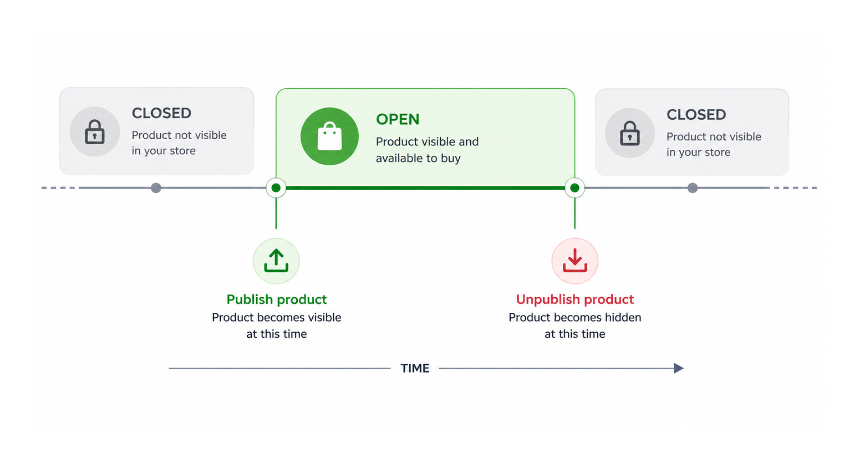
Approach 1: Manual Publish and Unpublish
The simplest approach requires no apps or code. You manually publish the product at the start of your selling window and manually unpublish it when the window closes.
To publish a product manually, open it in your Shopify admin, scroll to the Sales channels and apps section, click the toggle next to Online Store to make it visible, and save. To unpublish, do the reverse.
This works if your selling window is predictable and you are available at both ends of it. For a weekly cadence that is consistent, some merchants simply set a recurring calendar reminder and handle it in under a minute each time.
The obvious downside is that it requires you to be present at both the opening and closing time. If you forget, your store is open when it should be closed or closed when it should be open.
Approach 2: Shopify's Native Scheduled Publishing for the Open
Shopify's future publishing feature lets you schedule when a product becomes visible on your Online Store. This handles the opening side of a single window.
To use it, open the product and confirm the status is set to Active. Scroll to the Sales channels and apps section and click the calendar icon next to Online Store. Set your start date and time, click Schedule publishing, and save.
This is useful for a one-time or infrequent selling window where you want the opening to be automatic but are willing to handle the close manually. For example, if you open pre-orders once a month and the close is flexible depending on demand, this setup covers the predictable part automatically.
It does not help with the closing side. There is no equivalent scheduled unpublish in Shopify's native interface. And it is a one-time schedule, not repeating.
Approach 3: Shopify Flow for Recurring Windows
Shopify Flow includes a Scheduled time trigger that can run workflows on a repeating schedule. The smallest repeat interval is every 10 minutes. You can set a workflow to run hourly, daily, weekly, or monthly.
A workflow that publishes a product every Thursday morning and a second workflow that unpublishes it every Thursday evening would create a weekly selling window. Both workflows use the Scheduled time trigger with a repeat rule set to weekly, the Get product data action to find the product, and then either the Publish product or Unpublish product action.
Flow is available on all Shopify plans at no additional cost.
The limitation is setup complexity. Each selling window requires two workflows: one to open, one to close. If you have multiple products with different windows, that multiplies quickly. Flow also requires you to set up each workflow manually through the Flow editor, which has a learning curve. And the minimum scheduling interval is 10 minutes, so precision within a minute is not guaranteed.
For businesses that need a consistent weekly pattern on a small number of products and are comfortable building Flow workflows, this is a workable free solution.
Approach 4: A Scheduling App
Apps built for product scheduling give you a dedicated interface for setting availability windows without building Flow workflows manually. You configure the product, set the days or hours it should be available, and the app handles the publish and unpublish actions automatically.
This is the most practical option for businesses where scheduling is a regular operational need rather than a one-off event.
Approach 5: Controlling the Buying Window Through Inventory
Another approach is to use inventory as the gating mechanism rather than product visibility. Instead of hiding and showing the product, you keep it visible but only make it purchasable when you want orders.
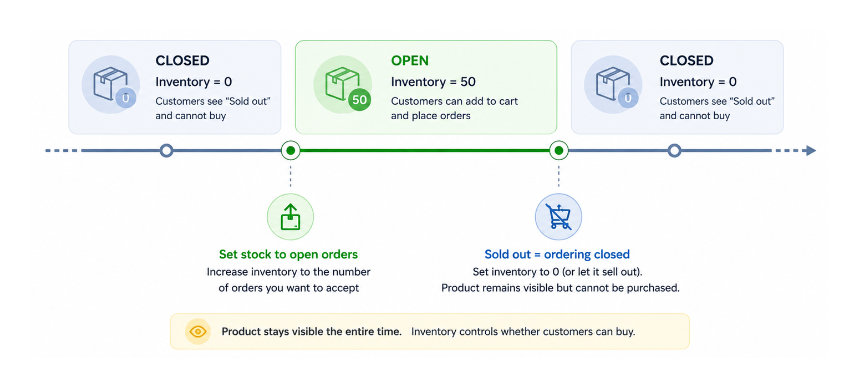
Set the product to track inventory. At the start of your selling window, update the inventory quantity to the number of orders you are willing to accept. Set the product to stop selling when out of stock. When all slots are taken, the product becomes sold out automatically.
At the close of your window, manually set inventory to zero regardless of how many orders came in. This closes buying without unpublishing the product. Customers can still see the product page and the sold out status communicates that ordering is currently closed.
This approach works well for businesses that sell in batches or slots rather than continuous inventory. A meal prep service that takes 50 orders per week, or a baker who takes a fixed number of orders, can use inventory as a natural order gate without dealing with publish/unpublish mechanics.
The downside is that the product page is always visible even when ordering is closed. This is fine for some businesses and not ideal for others. If you want the product to disappear entirely when the window closes, visibility control is required rather than inventory control.
Handling "We Are Closed" Messaging
Whatever approach you use for the actual ordering window, customers who arrive outside that window need to understand the situation. A sold out product with no context is confusing. A product that simply does not appear in your store gives no information to a customer who was expecting to order.
A few options for communicating closed windows:
Adding a note to the product description that explains your ordering schedule is the simplest approach. "We accept orders on Tuesdays and Wednesdays for Friday delivery. If ordering is currently closed, check back next Tuesday."
An announcement bar in your theme showing your current order schedule keeps the information visible sitewide without editing individual products.
If you use the inventory approach with zero quantity, you can customise the sold out messaging on your product page through your theme editor or liquid code. Some themes let you change the "Sold out" button text or add additional text below it for out of stock products. It is also worth removing the "unavailable" label from variant dropdowns so that customers can still click out-of-stock variants to trigger a back-in-stock notification — the guide on removing the unavailable label from Shopify variant dropdowns covers exactly how to do this.
Which Approach Fits Which Business
For a business that opens and closes infrequently and can be present at both ends of the window, manual publish and unpublish requires no setup at all.
For a business with a predictable weekly or daily schedule that wants automation without paying for an app, Shopify Flow is a free option that requires one-time workflow setup.
For a business where scheduling is a regular operational need, customers expect clear availability windows, and manual processes create too much risk of error, a dedicated scheduling app is the most reliable and lowest-maintenance solution.
For businesses that think in terms of order slots rather than store hours, the inventory approach can be the most natural fit regardless of other tools used. If your specific situation is a one-time drop rather than a recurring window, the guide on running a timed product drop in Shopify covers that workflow. And if you need to schedule an entire batch of products at once rather than managing them individually, bulk scheduling products in Shopify covers that in detail.