If your Shopify store suddenly starts receiving dozens of tiny suspicious orders, you are probably experiencing a card testing attack. These attacks can lead to chargebacks, higher payment processing risk, and restrictions on Shopify Payments if left unaddressed.
This article covers what card testing is, how to recognise it, and the exact steps to stop it.
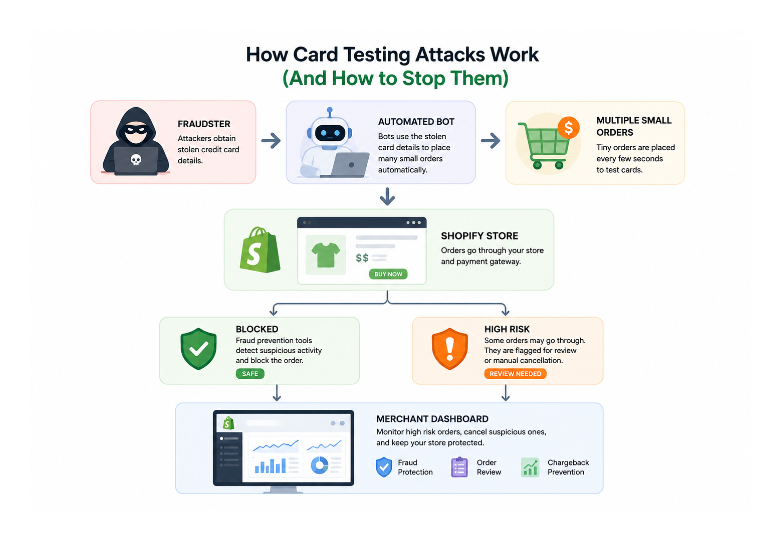
Signs Your Store Is Under a Card Testing Attack
- Many low-value orders arriving in rapid succession
- Orders for your cheapest products specifically
- Random or clearly generated email addresses
- Fake-looking billing information or addresses
- High number of failed payment attempts before a successful one
- Multiple orders from the same IP address or IP range
- Unusual spike in abandoned checkouts
- Orders appearing to originate from the API rather than your storefront
If you are seeing several of these at once, treat it as an active attack and act immediately.
If You Are Under Attack Right Now
Before reading the full article, take these steps immediately:
- Stop fulfilling any suspicious or high-risk orders
- Switch to manual payment capture in Shopify Payments settings
- Enable strict CVV and AVS filters in Shopify Payments
- Install Fraud Control and block known attacker IPs or emails
- Set up a Shopify Flow automation to hold or cancel high-risk orders
- Temporarily set your cheapest targeted products to Draft status
Each of these is covered in detail below.
What Card Testing Actually Is
Card testing is when someone uses automated scripts to verify whether stolen credit card details are valid by placing small orders on ecommerce stores. Fraudsters obtain card numbers through data breaches, phishing, or dark web marketplaces, then run those cards through stores in small amounts to identify which ones are active and not yet reported stolen. Valid cards are then used for larger purchases or sold to other fraudsters.
Stores selling cheap products are prime targets because small transaction amounts are less likely to trigger cardholder alerts, and the cost of each failed test is low. Automated scripts can interact with Shopify's Checkout API directly without going through your visible store pages, which is why the orders can appear to bypass your storefront entirely.
Some attacks involve attempts to save card details rather than complete a purchase. These may not appear on cardholder statements, meaning the activity can go unnoticed longer. They result in many declined transactions, a rise in abandoned checkouts, and some placed orders.
Why This Is a Serious Problem
The immediate damage is transaction fees on fraudulent orders. The longer-term risk is more significant.
Each chargeback counts toward your chargeback rate regardless of whether you win or lose the dispute. A surge of declined transactions can increase your decline rate for legitimate customers even after an attack stops.
Visa's VAMP program, effective April 1, 2025, monitors fraud and dispute ratios. If your account's metrics exceed the threshold, you are enrolled in a monitoring program. An extended period of enrollment can restrict your use of Shopify Payments. A card testing attack that goes unaddressed long enough can put your payment processing at risk entirely.
What Shopify Does Automatically
For payments processed through Shopify Payments, Shopify uses machine learning models to detect card testing at checkout. Depending on the risk level, Shopify can require the customer to complete a CAPTCHA challenge before continuing. When Shopify confirms that an attempt is automated bot activity, an abandoned checkout is not created for that attempt.
This protection runs automatically and requires no configuration. If you are not on Shopify Payments, this layer of protection is not available and the manual steps below become more important.
Immediate Steps to Take During an Attack
Cancel High-Risk Orders Before Fulfillment
Do not fulfill any order flagged as high risk during an active attack. In your Shopify admin, go to Orders and look for the warning symbol indicating medium or high fraud risk. Open each flagged order, review the fraud analysis indicators, and cancel and refund any that show card testing patterns: fake addresses, no CVV match, multiple failed payment attempts before a successful one, or IP addresses in high-risk regions.
Every order you fulfill against a stolen card is a potential chargeback and a hit to your fraud ratio. Cancel before fulfilling, not after.
Enable Manual Payment Capture
Go to Settings, then Payments, and under Shopify Payments find Payment capture. Set it to Manually capture payment for orders. This creates a window between an order being placed and payment being collected, giving you time to cancel fraudulent orders before the transaction is finalised.
Manual payment capture applies to all orders, not just high-risk ones. You need to actively capture payment within the authorisation window (typically up to 7 days) or the authorisation expires. Combine this with a Shopify Flow workflow that automatically captures payment for low-risk orders so you are only manually reviewing the suspicious ones.
Configure AVS and CVV Filters in Shopify Payments
In your Shopify Payments fraud prevention settings, enable strict AVS and CVV filtering. AVS checks whether the billing address matches the address on file with the card issuer. CVV checks verify the security code on the card.
Set these filters to automatically cancel or flag orders that fail verification. For card testing attacks, strict CVV filtering blocks many attempts because attackers often have card numbers without the corresponding CVV.
Use Fraud Control to Block by Email, IP, or Billing Details
Fraud Control is Shopify's free app for creating custom blocking rules. As you identify patterns in the fraudulent orders, add the email addresses, IP addresses, or billing details to your block list. Subsequent orders matching those details are flagged or cancelled automatically.
During an active attack, IP addresses often cluster. If multiple fraudulent orders come from the same IP or range, blocking that range in Fraud Control stops further orders from that source.
The Fraud Filter app was sunset by Shopify on January 31, 2025. Fraud Control is the current replacement and is available at no cost. If you had custom rules in Fraud Filter, those needed to be migrated to Shopify Flow or Fraud Control.
Temporarily Set Targeted Products to Draft
If the attack is targeting specific products, setting those products to Draft status removes them as targets while you address the attack through the other methods. Draft status prevents all channel access including API-based orders. Simply unpublishing from the Online Store channel may not stop API-originated orders, so use Draft rather than unpublishing if you want to close that route.
Once the attack has subsided and your fraud prevention workflows are in place, restore the products.
Approximate Setup Time for Each Action
| Action | Time |
|---|---|
| Enable manual payment capture | 2 minutes |
| Configure AVS and CVV filters | 3 minutes |
| Install Fraud Control and add block rules | 5 minutes |
| Set products to Draft | 2 minutes |
| Create Shopify Flow automation | 10 minutes |
Automating the Response With Shopify Flow
Shopify Flow can automatically flag, hold, or cancel orders matching high-risk patterns without you having to monitor the orders page constantly. Flow is available on all Shopify plans.
A useful workflow for card testing attacks:
Trigger: Order created
Condition: Order risk level is high
Action: Cancel the order, or tag it for manual review depending on your preference
A second workflow for catching the small-order pattern:
Trigger: Order created
Condition: Order total is less than a specific threshold matching your cheapest product price
Action: Hold the order for review
Together these catch the two main signals of a card testing attack: high fraud risk score and unusually low order value.
The API Order Question
Shopify does not have a native setting to restrict orders to specific domains or to block API-originated orders entirely. There is no option to say "only allow orders from my storefront" for the Checkout API.
The practical alternative is ensuring your Shopify Payments fraud filters, Flow automations, and Fraud Control blocking rules are configured to reject suspicious patterns regardless of where the order originates. These apply to all orders including API-originated ones.
What to Do About Chargebacks From the Attack
If orders processed before you caught the attack, cardholders may file chargebacks when they notice unauthorised transactions.
Respond to each chargeback dispute in your Shopify admin under Orders. For chargebacks from card testing, the evidence to submit includes documentation that the order showed fraud indicators, that the billing address was fake or mismatched, and the fraud analysis report from the order. Winning individual chargebacks on clearly fraudulent orders is possible, though card issuers make the final decision.
Cancelling and refunding suspicious orders proactively before chargebacks are filed is far more effective than disputing after the fact. A cancelled fraudulent order does not generate a chargeback. A fulfilled fraudulent order that gets disputed does.
Conclusion
Card testing attacks can escalate quickly but are manageable if you respond early. Cancel suspicious orders before fulfilling them, tighten your fraud settings, automate the response with Shopify Flow, and use Fraud Control to block repeat sources. The faster you act, the less impact the attack has on your chargeback rate and payment processing standing.
For understanding how to read individual fraud signals on suspicious orders, the article on evaluating high-risk orders in Shopify covers what each indicator means and how to use them to make fulfillment decisions.
If the attack is targeting a specific cheap digital product, restricting that product so it can only be purchased by logged-in customers with a specific tag, or requiring it to be accompanied by a physical item, eliminates the attack surface on that product. The article on limiting a Shopify product to specific customers or requiring it with another item covers how to set up those checkout validation rules. For flagging specific customers who place fraudulent orders and ensuring you are alerted if they try again, the article on flagging and blocking problem customers in Shopify covers the tag-and-notify workflow.