Shopify's Finance Summary is genuinely confusing if you come to it expecting accounting-ready numbers. The gross sales figure looks inflated. Refunds seem to double-count in some scenarios. The numbers do not match what your 1099-K says. And finding processing fees requires digging through multiple sections.
None of this is a bug. It is the result of Shopify using specific accounting definitions for each metric that differ from what most small store owners intuitively expect. Once you understand what each number actually means, the data you need is there — you just need to know which report to look at.
One distinction worth flagging upfront: Shopify's sales reports and payments reports track different things. Sales reports record the value of goods sold at the time of the order. Payments reports track money that actually moved. For most standard ecommerce setups these are close, but they are not the same thing. This is covered in detail at the end of this article.
Why Gross Sales Looks Wrong
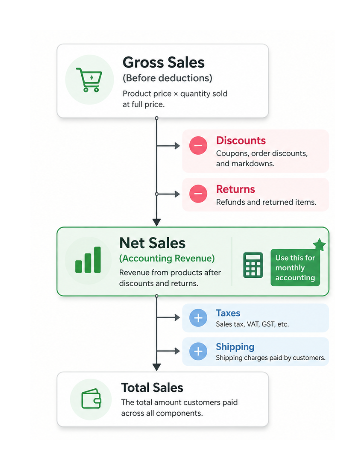
Gross sales in Shopify is the full undiscounted, unrefunded product revenue before anything is deducted. It is calculated as product price multiplied by quantity sold, with no adjustments for discounts, returns, taxes, or shipping.
Discounts appear as a separate negative line rather than being netted out of gross sales. This is standard accounting treatment — it shows you the full picture of what you offered versus what you actually received. The number you are looking for is Net sales, not gross sales.
The Numbers You Actually Need
Net sales is the revenue figure to use for monthly accounting.
Gross Sales
− Discounts
− Returns
= Net Sales
Net sales is the revenue from products after discounts and refunds are accounted for, but before taxes and shipping. For most small stores doing monthly accounting, this is the primary revenue figure.
Total sales includes everything customers paid across all order components:
Net Sales
+ Shipping
+ Taxes
= Total Sales
Total sales is closer to cash received but still not the amount deposited into your bank account. It does not account for payment processing fees deducted before your payout, and it may include components like duties or gift card redemptions that are handled differently across reports.
To find these figures: go to Analytics in your Shopify admin, then Reports, then Finance. Open the Finance Summary. Both net sales and total sales are listed, filterable by month using the date range selector at the top.
Why Refunds Can Look Like Double-Counting
When you edit an order by removing an item and adding a different one, Shopify may record this as two separate transactions: a refund for the removed item and a new sale for the replacement item. If the original order was $200 and the edit creates a $190 replacement item, you could see $390 in gross sales and a $200 refund, netting to $190 — arithmetically correct but alarming at first glance.
The net sales figure corrects for this automatically. Gross sales will always be the raw sum of all items sold at full price including replacements. Net sales is what matters for accounting purposes.
The Report That Replaces the Finance Summary for Accounting
For a cleaner monthly accounting view, use the Total sales breakdown report rather than the Finance Summary homepage.
Go to Analytics, then Reports, then Finance, then Total sales breakdown. This report shows gross sales, discounts, returns, net sales, taxes, shipping, and total sales all in one view, filterable by month. It gives you a clear breakdown of each component rather than the summary cards on the Finance Summary page, which are harder to compare.
Export this report by clicking the Export button in the top right. The CSV gives you the monthly breakdown your accountant needs, and exporting it directly saves the manual copy-paste work of pulling numbers from individual summary cards.
Finding Payment Processing Fees
Processing fees are not shown in the sales reports. They are in a separate section of your Shopify admin.
If you use Shopify Payments, go to Finance in the left sidebar (not Analytics), then Documents. The payout reconciliation report gives you a reconciled breakdown of your Shopify Payments balance activity, fees, and payouts for a selected date range. This is the document that shows what Shopify deducted in processing fees before depositing to your bank account.
If you use a third-party payment gateway, the fee information comes from that gateway's own reporting rather than from Shopify.
The payout reconciliation report in Finance, then Documents is separate from the Finance Summary. It is specifically designed for reconciling what Shopify collected versus what was deposited to your bank. If you are trying to understand why your bank deposits do not match your total sales, this report is the right place to start.
Finding Shipping Label Costs
Shopify charges for shipping labels purchased through Shopify Shipping on your billing cycle. Shipping labels are operating expenses rather than sales activity, which is why Shopify tracks them through billing instead of the Finance reports.
These charges appear in Settings, then Billing. Each bill shows the charges in that billing period including shipping label costs. The billing threshold model means bill dates do not align neatly with calendar months, so to get a monthly total you need to add up the shipping label costs across any bills that fell within that calendar month.
There is no native monthly shipping cost report in Shopify that separates label costs from subscription fees and other charges. The bills are the source of truth for this data.
Why Your 1099-K Is Lower Than Gross Sales
If your 1099-K is significantly lower than your gross sales figure, this is expected and not a discrepancy.
A 1099-K from Shopify Payments reports the gross amount of payment card transactions processed. This figure reflects actual payments received from customers, which aligns much more closely with net sales than with gross sales. The gap is explained by discounts subtracted before customers were charged, returns refunded via the payment processor, and orders paid by methods other than credit or debit card (gift cards, PayPal, manual payments) which may be reported separately or not included.
Do not use Shopify's gross sales figure for tax reporting. It overstates revenue by design. Use net sales from the Total sales breakdown report, or work with the 1099-K figure from your payment processor, as your primary revenue figure for tax purposes. Consult your accountant if you are unsure which figure to use for your specific situation.
A Simple Monthly Accounting Workflow
| What you need | Where to find it |
|---|---|
| Revenue (net sales) | Analytics → Reports → Finance → Total sales breakdown |
| Refunds | Same report — shown as a negative line, already deducted in net sales |
| Processing fees | Finance → Documents → Payout reconciliation report |
| Shopify subscription fee | Settings → Billing |
| Shipping label costs | Settings → Billing — add up label costs across bills in the month |
These five figures give you everything you need for basic monthly accounting, broken down by source.
What the Payments Reports Are For
Sales reports track the value of goods sold at the time of the order. Payments reports track money that actually moved. If a customer places an order but has not yet paid — for example, on a net-terms invoice — the order appears in sales but not in payments. If a customer pays a deposit, only the deposit appears in payments, not the full order value.
For a standard ecommerce store where customers pay at checkout, sales and payments will be close to equal. The difference matters more for stores using draft orders, invoices, or deferred payment setups.
The Finance Summary shows a Payments section with cards for total payments, payments by gateway, and pending payments. If you are trying to reconcile why your bank deposits look different from your sales numbers, the payments reports and the payout reconciliation document are the right tools. The sales reports alone will not show you this.
If you are also syncing inventory or order data to Google Sheets for your own tracking, the article on syncing Shopify inventory to Google Sheets covers how to pull product and order data automatically so your spreadsheet stays current alongside the Finance reports.