You spend time fixing product data in Google Merchant Center. A few days later the same issues are back. Descriptions have reverted, images are missing again, or details you corrected are showing the wrong values. It feels like the connection is broken.
The connection is not broken. It is doing exactly what it was designed to do. The problem is that Shopify always wins.
In short:
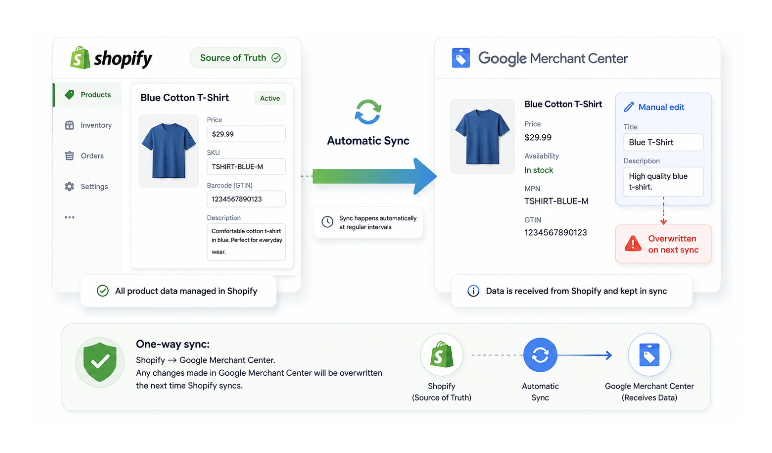
- Shopify is the source of truth
- Google Merchant Center receives product data from Shopify, not the other way around
- Manual edits in GMC are overwritten every time the sync runs
- Permanent fixes must be made in Shopify, not in GMC
This article explains how the sync works, what causes the most common issues, and how to fix them at the source.
How the Sync Actually Works
The Google and YouTube channel in Shopify pushes your product data from Shopify to Google Merchant Center automatically. The sync is one-way. Shopify sends data to GMC. GMC does not send data back to Shopify.
When the sync runs, it overwrites whatever is in GMC with whatever is currently in Shopify. Every field that Shopify manages gets replaced. This is why manual corrections in GMC do not stick. The next sync simply overwrites them with the Shopify values again.
The sync runs automatically at regular intervals. Google also sets a 30-day expiry policy on synced product data, which means the channel actively re-syncs products on a rolling basis to keep them from expiring in GMC. You can also trigger a manual sync from within the channel settings. Even after fixing data in Shopify and triggering a manual sync, changes may not appear in GMC immediately — Google processes incoming data on its own schedule, and some updates take additional time to reflect in your GMC account.
The Google and YouTube channel is a Google product, not a Shopify product. Shopify provides the integration, but Google controls how product data is validated, approved, or disapproved. When a product is disapproved in GMC, the reason comes from Google's requirements, not from Shopify's settings.
If you are using a third-party feed app like Simprosys, DataFeedWatch, or a similar tool instead of Shopify's Google and YouTube channel, the sync behaviour differs. Those apps generate their own product feeds independently and have their own configuration and troubleshooting workflows. The guidance in this article applies specifically to the native Google and YouTube channel.
The Most Common Causes of Sync Problems
| Problem | Likely Cause | Where to Fix |
|---|---|---|
| Product missing from GMC | Not published to Online Store | Shopify product sales channels |
| Manual edits disappearing | Shopify sync overwrites GMC | Edit in Shopify, not GMC |
| Missing GTIN error | Barcode field empty | Shopify product inventory section |
| Image disapproved | Image fails GMC requirements | Replace image in Shopify |
| Shipping data missing | Markets configuration mismatch | Shopify Markets settings |
| Wrong product category | Google category not mapped | Google and YouTube channel settings |
| Variant disapproved | Missing barcode, image, or GTIN per variant | Shopify variant settings |
Products not available to Online Store
The Google and YouTube channel only syncs products published to your Online Store sales channel. If a product is Active but not published to Online Store, or if it is in Draft status, it does not sync.
That distinction also matters when you are cleaning up discontinued products. How to clean up discontinued Shopify products without damaging SEO explains when to archive, unpublish, redirect, or leave a product page live.
Open the product in Shopify, scroll to Sales channels and apps, and confirm Online Store is checked and active rather than scheduled for a future date.
Missing or incomplete product data in Shopify
GMC has stricter data requirements than Shopify enforces. Shopify lets you publish a product with no barcode, no product category, no condition, and no GTIN. GMC will disapprove products missing these fields or flag them as having insufficient data.
GTIN (barcode): Go to the product in Shopify, scroll to the Inventory section, and check the Barcode field. If you manufacture your own products and do not have a GTIN, you need to indicate this in GMC directly. It cannot be done from Shopify.
Product category: Shopify has its own category system, but GMC uses Google's product taxonomy. In the Google and YouTube channel settings, you can map your Shopify product types to Google product categories. If this mapping is missing or incorrect, GMC may categorise products incorrectly or flag them.
Condition: GMC requires a condition value of new, used, or refurbished. Check that this is set correctly in the Google and YouTube channel settings.
Shipping: GMC requires shipping information for each product. The Google and YouTube channel uses your Shopify shipping rates, but only for the country configured in Shopify Markets. If your Markets configuration does not match the target country in your GMC account, shipping data will not populate correctly.
Images that do not meet GMC requirements
GMC requires images to be at least 100x100 pixels for non-apparel and 250x250 pixels for apparel. Images cannot contain promotional text, watermarks, or borders. These minimums are well below Shopify's recommended image size of 2048x2048, so dimensions are rarely the problem. The area where issues typically arise is image content: promotional overlays, watermarks, or borders will cause GMC to reject an image even if the dimensions are correct.
The most common image issue that causes intermittent sync problems is the image URL changing. If you replace a product image in Shopify, the old URL stops working and GMC may have it cached. The sync resolves this on the next cycle when it pushes the new URL, but there is a lag. The article on Shopify product image sizes and best practices covers what Shopify recommends and why.
Do not edit product images, titles, or descriptions directly in GMC as a workaround for sync issues. The next sync will overwrite your GMC corrections with the current Shopify values. Any fix that needs to persist must be made in Shopify.
Data that GMC requires but Shopify does not collect
Some fields GMC needs are not part of Shopify's product data model and cannot be set from the Shopify product page. The most common examples are age group, gender for apparel, material, pattern, and colour attributes formatted to Google's exact specification.
The Google and YouTube channel has a product attributes section where you can set these values for individual products or apply defaults across product types. These values are not overwritten by the Shopify sync because they are stored in the channel settings, not in Shopify's product data.
Variant data sync issues
If a product has many variants, GMC receives each variant as a separate item that must meet GMC's requirements independently. A product with 30 variants creates 30 GMC items, each needing a valid GTIN, image, price, and availability.
Common variant-level issues include: some variants having barcodes and others not, variant images missing for certain options, duplicate GTINs across variants which GMC flags as an error, and variants that are out of stock with inventory settings that conflict with GMC's availability requirements.
Check variant-level data by going to the product in Shopify, scrolling to the Variants section, and opening each variant to confirm its barcode, price, and image are set correctly.
How to Stop the Cycle of Manual Fixes
The pattern of fixing something in GMC only to have it break again is entirely caused by the one-way sync. Stop editing in GMC and edit in Shopify instead.
Go through your GMC disapprovals and for each one, trace it back to the relevant Shopify field:
- GMC flags a missing GTIN: add the barcode to the product in Shopify under Inventory
- GMC flags an image issue: replace or update the image on the Shopify product page
- GMC flags missing shipping: check your Shopify Markets settings and shipping rates configuration
- GMC flags missing attribute data such as age group or gender: set these in the Google and YouTube channel product attributes section, not in Shopify
- GMC flags product titles or descriptions as non-compliant: edit the title or description on the Shopify product page
After making changes in Shopify, trigger a manual sync from the Google and YouTube channel rather than waiting for the automatic cycle. This pushes updated data to GMC immediately and lets you verify whether the fix resolved the issue without waiting several days.
Why New Issues Keep Appearing as You Add Products
As you add more products, each new one goes through the same validation process in GMC. If new products are missing the same fields that caused issues on existing products, the same errors appear.
The most efficient fix is to standardise your product creation process in Shopify so every new product includes all required fields before it is published. Before publishing a product to Online Store, confirm the barcode is filled in, the product type is set and mapped to a Google category, a condition is set in the Google and YouTube channel, at least one clean image meeting GMC specifications is attached, and the product is available in Shopify Markets for the relevant country.
This prevents the issue from compounding as your catalog grows.
What to Do When GMC Disapproves a Product and You Cannot Find the Cause
GMC disapproval messages are sometimes vague. A disapproval for missing required attribute or invalid value does not always make clear which specific field caused the problem.
In the Google and YouTube channel within Shopify, open the product list and look for products with a status of Disapproved or Pending. Clicking on a product shows the GMC status and the specific reason Google has provided. If the reason still does not make clear which Shopify field to change, open the same product directly in your GMC account under Products. GMC shows more detailed diagnostic information than what surfaces in the Shopify channel view.
For persistent issues that you cannot resolve, Google Merchant Center has an appeal process for certain types of disapprovals. Some disapprovals, particularly for policy violations, cannot be resolved through data changes and require submitting an appeal through GMC directly.
Monitoring the Connection Ongoing
Enable email notifications in GMC for new disapprovals. GMC can send an email when new products are disapproved or when existing products change status, surfacing issues in near real-time rather than requiring you to check manually.
Check the Google and YouTube channel in Shopify after adding each batch of new products. The channel shows a product-level sync status that identifies issues before they become a large backlog.
Once you understand that Shopify is the source of truth, Google Merchant Center becomes much easier to manage. Instead of fixing the same issues repeatedly in GMC, focus on improving your Shopify product data. Cleaner product data leads to fewer disapprovals, faster approvals, and a healthier shopping feed over time.
If you are also focused on broader search and SEO visibility, the article on making your Shopify store appear in AI and search results covers the organic side of search visibility alongside paid Shopping listings. And if your store speed is slow, that can affect the quality of product page crawling that feeds into the data GMC receives — the article on why your Shopify store is loading slowly covers how to diagnose and fix that.