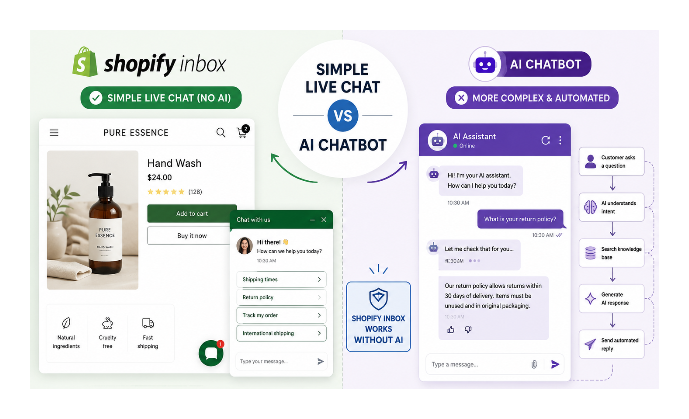
Most merchants looking for live chat want the same thing: a chat bubble, a way to receive messages, and a few clickable FAQs. No AI, no branching logic, no bots.
Shopify Inbox already does exactly that. Although Shopify heavily promotes its AI features in its marketing, they are entirely optional. This article explains what Shopify Inbox can do, what its limitations are, and when a third-party chat tool makes more sense.
What Shopify Inbox Is (And Is Not)
Shopify Inbox is a free messaging app built into Shopify. Once enabled, it adds a chat widget to your storefront. Customers send messages through the chat widget, and you reply from your Shopify admin or the Inbox mobile app. Once enabled, the widget appears across your entire storefront unless your theme or custom code intentionally hides it on specific pages.
That is the core of it. A chat bubble that routes messages to you.
The confusion about AI comes from how Shopify presents the app. Here is what each component actually is:
| Feature | AI? | Optional? |
|---|---|---|
| Inbox agent | Yes | Yes — off by default |
| Shopify Magic suggested replies | Yes | Yes — ignore the suggestions |
| Instant Answers | No — pre-written FAQs you configure | Yes |
The Inbox agent is an AI that can automatically answer customer questions using your product catalog and store policies. If you already use Inbox, your conversations stay with your staff unless you choose to turn the agent on. Leaving it off means you receive every message and reply yourself.
Shopify Magic suggested replies appear when you are composing a reply. They are optional, available only in English, and easy to ignore. The suggestion appears but you are not required to use it.
Instant Answers, despite the name, are not AI. They are pre-written responses to questions you define. When a customer opens the chat widget, they see a list of clickable questions you have set up. Clicking one shows the answer you wrote — a built-in FAQ panel inside the chat widget, not an intelligent chatbot.
To disable the Inbox agent if it has been turned on: go to Sales channels, then Inbox in your Shopify admin. Look for the agent settings and turn it off. Your chats will then go directly to you rather than being handled automatically.
What You Can Customise in Shopify Inbox
Shopify Inbox gives you a small set of visual controls through the chat settings:
- Background colour of the chat widget
- Button colour
- Chat icon (Shopify's default icon or a custom one)
- Widget position (bottom-left or bottom-right)
- Greeting message text
If you are expecting controls over fonts, spacing, animations, or exact pixel positioning, you will not find them. Shopify intentionally keeps the widget simple, so most stores either use it as-is or move to a third-party tool when branding consistency becomes important.
The widget runs inside a Shadow DOM, which means CSS added to your theme generally cannot style elements inside it. That is why most CSS-based customisation attempts do not work as expected.
Setting Up Instant Answers (Your FAQ Panel)
Instant Answers are the feature that makes Shopify Inbox genuinely useful for stores with common repeat questions. They appear as clickable options when a customer opens the chat, before they have typed anything.
To set them up, go to Sales channels, then Inbox, then Chat settings. In the Instant answers section, add questions and their corresponding answers. Shopify Magic will suggest questions based on your store policies and conversation history, but you can write them yourself without using the suggestions.
Good questions to add: shipping time, return policy, order tracking, whether you ship internationally, and how to contact you outside chat hours.
Also set an automated first reply — a message sent immediately when a customer starts a chat, letting them know your hours and when they can expect a response. If you are not available around the clock, a clear automated greeting that sets response time expectations prevents frustration. Customers are generally happy to wait when they know what to expect.
When Shopify Inbox Is Enough
For a solo operator or a small team managing a modest order volume, Shopify Inbox covers the basics cleanly: a message bubble, a real inbox, and clickable FAQs that answer common questions without any AI involvement.
The setup takes under 30 minutes. There are no subscription fees. The Inbox mobile app means you can reply from your phone. And because it is native to Shopify, customer names and order history are visible alongside each conversation without any integration work.
If the default widget appearance works for your store's design, Shopify Inbox is the straightforward answer.
When to Use a Third-Party Chat Tool
The case for a third-party tool is specific. If any of these apply, it is worth looking at alternatives:
The widget is covering key elements on your storefront. The chat bubble is fixed to the bottom-right or bottom-left corner. If it overlaps your Add to Cart button or another critical element on mobile and switching to the opposite corner does not resolve it, you need a tool with more granular positioning controls.
Your store design requires a specific look that the Inbox widget cannot match. If brand consistency is essential and the Inbox widget creates a visible mismatch, a more customisable tool is the right call.
You want to receive messages via WhatsApp or another platform your customers already use. Shopify Inbox routes messages through Shopify's own system. In markets where customers overwhelmingly prefer WhatsApp, a dedicated integration puts conversations where customers already are.
Third-Party Options Worth Knowing
Tawk.to is a free third-party live chat tool with significantly more customisation than Shopify Inbox. Font, widget colour, size, position, and appearance can all be adjusted. It has a free tier with no message limits and integrates with Shopify by embedding a small JavaScript snippet in your theme. The main trade-off is that conversations happen in the Tawk.to dashboard rather than in Shopify admin, so you do not see customer order history alongside chats.
Tidio and similar tools offer more design control than Shopify Inbox and stay free up to certain message volumes. They also have AI features if you want them later, but the basic live chat functionality works without enabling any of that.
WhatsApp chat widgets add a chat bubble that opens a WhatsApp conversation rather than an in-app chat window. Several Shopify apps in the App Store add a WhatsApp chat button with no configuration beyond entering your WhatsApp number. If you want to go further and automate order notifications and cart recovery through WhatsApp rather than just a chat button, the article on choosing a WhatsApp automation app for Shopify covers the important distinction between apps that break at volume and ones that do not.
If your store sells consultations or other services, live chat is often only the first step. Appointment booking for a service business on Shopify covers the booking apps, calendar sync, intake forms, and deposits you need before sending a customer to checkout.
The Bottom Line
Unless you need extensive design customisation or want to route conversations through a platform like WhatsApp, Shopify Inbox is the simplest and most cost-effective live chat solution for most Shopify stores. Leave the AI agent off, configure a handful of Instant Answers for your most common questions, set an automated greeting with your response hours, and you have a functional live chat system in under 30 minutes with no ongoing cost.
The one legitimate friction point worth checking is whether the chat bubble covers your Add to Cart button on mobile. If it does, switch the widget to the opposite corner first. If that does not resolve it, Tawk.to gives you the positioning control Inbox lacks.
For a broader look at how customer experience at checkout affects conversion, the article on common reasons your Shopify checkout rate is low covers friction points beyond chat that also affect whether customers complete a purchase.