The short answer is yes, you can use Instagram's 4:5 portrait ratio (2160x2700) for your Shopify product images. Shopify does not require square images. What Shopify requires is that you are consistent, because mixing different aspect ratios across products creates a broken-looking collection grid.
This guide covers what Shopify's image recommendations actually mean, how portrait images behave on your storefront, the practical trade-offs of sharing images across Shopify and Instagram, and what to watch for when you make the switch.
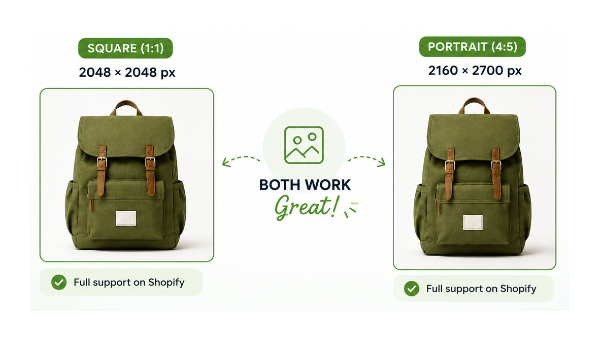
Common Image Sizes at a Glance
| Image Size | Aspect Ratio | Best For | Recommended |
|---|---|---|---|
| 2048 × 2048 | 1:1 | General stores, multi-channel selling | Yes |
| 2160 × 2700 | 4:5 | Fashion, apparel, Instagram reuse | Yes |
| 1600 × 2000 | 4:5 | Smaller files, same ratio | Yes |
| 1200 × 1500 | 4:5 | Budget option, limited storage | Acceptable |
| 800 × 800 | 1:1 | Minimum practical size | Only if necessary |
The most important factor is not which size you choose from this table. It is that every image in your catalog uses the same aspect ratio.
What Shopify Actually Recommends
Shopify recommends product images between 800x800 and 2048x2048 pixels for square photos. These are not strict requirements. They are guidelines for quality and performance.
The lower limit of 800x800 exists because Shopify's zoom feature requires enough resolution to work without pixelation. If your image is too small and the theme tries to zoom it, the result looks blurry.
The upper recommendation of 2048x2048 is a practical sweet spot, not a ceiling. Shopify supports images up to 20MB in file size and up to 4472x4472 pixels. Uploading at the maximum is unnecessary and does not improve what customers see.
Shopify also automatically converts uploaded images to WebP format for browsers that support it, which is now the vast majority. You do not need to upload WebP files yourself.
How Shopify Serves Your Images
One reason uploading a larger image than strictly necessary is not a problem: Shopify does not serve your original file directly to customers. When you upload a product image, Shopify generates multiple resized versions and serves them from its CDN. A customer on a mobile device gets a smaller version optimised for their screen. A customer on a high-density desktop display gets a larger version. Your original upload is the source; Shopify handles the delivery.
This means the risk of uploading a 2160x2700 image is not that customers receive a slow 3MB file. It is that your original upload is large, which can slow down the admin upload process. Compress before uploading. Shopify handles the rest.
Why Square Is the Default Recommendation
Square images (1:1 ratio) are the default recommendation because they behave predictably across all Shopify theme layouts, collection grids, and device sizes. A square image fills its container evenly on mobile and desktop without cropping, letterboxing, or reflow issues.
Square is also consistent with how other major platforms display products. Amazon, eBay, and most marketplace platforms default to square or near-square product images, which means square product photography tends to be the most reusable across channels.
That said, square is a recommendation for ease and consistency, not a technical requirement.
When NOT to Use 4:5
Portrait images are not the right choice for every store. Before switching, consider whether 4:5 actually fits your products and sales channels.
Electronics and tech accessories are typically photographed against white backgrounds with precise framing. The extra vertical space in a portrait image adds padding rather than useful visual information. Square or landscape framing usually works better.
Furniture and home goods often have horizontal proportions. A sofa, desk, or rug shot at 4:5 will either have significant empty space above and below the product or require cropping that loses important context like legs or full width.
Stores already using square images across a large catalog face a significant switching cost. Converting hundreds of product images to a new ratio requires reshooting or editing every image. Unless there is a clear reason to switch, the consistency you already have is worth preserving.
Multi-channel sellers who list on Amazon, eBay, or other marketplaces that enforce square images will end up maintaining two sets of images anyway. In that case, square originals with a portrait crop for Instagram is often more practical than the reverse.
How Portrait Images (4:5) Behave on Shopify
Instagram's standard portrait format is 4:5, which at 2160x2700 pixels gives you a taller-than-wide image. On Shopify, portrait images are fully supported and used widely by fashion brands, where showing a full-body view of a garment is more informative than a cropped square.
The most important thing about using portrait images on Shopify is not the dimensions themselves. It is that every product image on your store uses the same aspect ratio. If you upload 4:5 portrait images for some products and 1:1 square images for others, your collection page grid will have products at different heights. On most themes this creates an inconsistent, jagged layout that looks unfinished.
If you decide to use Instagram's 4:5 format for your Shopify images, apply it consistently across your entire catalog. Every product, every variant image, every additional angle shot. Mixing ratios is the one thing that visibly hurts store presentation.
Why Image Consistency Matters
Consistent product images make your store look more professional and reduce visual distractions while customers browse collections. When every product card is the same shape, shoppers can compare products more easily and the grid reads as intentional rather than assembled from different sources.
Even if your theme technically handles mixed aspect ratios, the result rarely looks clean. Consistent framing is one of the lower-effort things you can do that has a visible impact on how polished a store appears.
Can You Use the Same Image for Both Shopify and Instagram
Yes, and for many merchants this is a practical time-saver. Here is how each platform handles the 4:5 format:
On Instagram, the 4:5 ratio is the recommended format for feed posts because it takes up the most vertical screen space, which keeps the image in view longer as users scroll. 2160x2700 pixels is well above Instagram's minimum quality threshold.
On Shopify, a 2160x2700 image at 4:5 ratio uploads and displays correctly. It is above Shopify's recommended minimum, well below the file size limit, and gives you more than enough resolution for zoom functionality.
The same file works well on both platforms in most cases, provided it is compressed appropriately before uploading to Shopify.
Compression
A well-compressed 2160x2700 JPEG typically lands between 200KB and 600KB depending on the image content. Rather than aiming for a specific number, compress until there is no visible quality loss at normal viewing size. An image at 650KB that looks sharp is better than one at 400KB with visible compression artifacts.
Tools like Squoosh or TinyPNG handle this reliably. Run images through compression before uploading to Shopify. The visual quality difference is not visible to customers but the upload and initial load difference is.
Use JPEG for product photography. Use PNG only for images that require a transparent background, such as product cutouts or graphics with text. PNG files are significantly larger than JPEGs for photographic content.
What Changes When You Switch to Portrait
If your store currently uses square images and you are switching to portrait, there are a few things to check.
Theme image ratio setting. Most Shopify themes have an image ratio setting in the theme editor under the collection template. If your theme is set to crop images to a square ratio, portrait images will be cropped and you will lose the top and bottom of the image. Set the theme's image ratio to match your actual image ratio before uploading new images.
Collection page layout. When you switch to portrait, the grid cells become taller. This is generally fine and in some cases feels more editorial. What does not work is having some products in portrait and some in square in the same collection.
Featured image on product page. On the product page, most themes display the main product image at its natural ratio. A portrait image will appear taller than a square image. This is usually preferred for apparel and lifestyle products.
Thumbnails. Variant and gallery thumbnails in most themes are displayed in a fixed ratio. Check how your theme handles portrait thumbnails. If the theme forces thumbnails to square, portrait images will be cropped in the thumbnail view even if they display correctly in the main image slot.
Breathing room. Leave some space around the product in the frame. Some themes crop collection images slightly on smaller screens. A product photographed edge-to-edge in a 4:5 frame may lose the top or bottom on mobile.
Alt Text on New Images
When you upload new product images, add alt text to each one. Shopify stores alt text per image on each product, and it matters for both search engine indexing of your product images and for accessibility.
For more on what alt text does for your Shopify store's SEO and how to write it correctly, the guide on whether alt text helps Shopify SEO covers the detail.
If you have a large number of products to update with new images and need to add alt text across many images at once, AltMate handles bulk alt text generation for Shopify product images, which saves significant time when doing a catalog-wide image refresh.
Setting Up a Consistent System
The most time-efficient approach for a store using both Instagram and Shopify is to shoot and export all product photography at 4:5 ratio from the start. This eliminates any post-processing step for format conversion and gives you a single file that works on both platforms.
When shooting, frame your subject with the 4:5 ratio in mind. On most cameras and phones, you can set the capture ratio to 4:5 directly. On a phone, Instagram's in-app camera also shoots at 4:5 when set to portrait mode.
For existing square images you want to convert to 4:5, you need to either reshoot or crop. Cropping a square image to 4:5 adds height, which a square cannot provide. You would need to extend the canvas with background fill, which is only practical for flat-lay or product-on-white images where the background is a solid colour.
Recommended Setup for Most Shopify Stores
If you sell apparel, footwear, or lifestyle products and want to share images across Shopify and Instagram:
- 2160 × 2700 pixels, 4:5 ratio
- JPEG format
- Compressed to no visible quality loss (typically 200KB to 600KB)
- Consistent ratio across every product in your catalog
- Theme image ratio setting matched to 4:5
- Alt text added to every image
If you sell electronics, furniture, or products with horizontal proportions, or if you list on marketplaces that require square images:
- 2048 × 2048 pixels, 1:1 ratio
- JPEG format
- Same compression approach
- Consistent ratio across every product
If you sell products in multiple colors, make sure each color variant has the correct image assigned so the gallery updates when a customer selects a color. The guide on showing different images for each color variant in Shopify covers how to set this up and when you need more than Shopify's native one-image-per-variant support.