If you sell identical products and want orders of different sizes to use different shipping boxes and pay different shipping rates, Shopify's native weight-based shipping rates handle this cleanly. You do not need an app, custom code, or a workaround.
What Shopify does not support natively is item count as a condition. You cannot set a rule that says "orders of 1 to 5 items use Rate A and orders of 6 to 12 items use Rate B." But for products that all weigh the same, total order weight is equivalent to item count, and that is fully supported.
This article covers the complete setup, how to calculate the right weight thresholds for your products, what to watch out for with Shopify's package weight behaviour, and how carrier-calculated rates work as an alternative.
How Shopify's Weight-Based Rates Work
Weight-based shipping rates let you charge different shipping prices based on the total weight of the items in the cart. You define multiple rates, each with a minimum and maximum weight range. Shopify applies the rate that matches the total cart weight at checkout.
You can have as many weight-based rates as you need. Each rate has its own name, price, and weight range. When a customer reaches checkout, Shopify calculates the total weight of everything in their cart and shows the rate whose weight range matches.
Weight-based flat rates are available on all Shopify plans. Carrier-calculated rates, which show live prices from carriers like UPS or FedEx, require a higher-tier plan or a separate carrier account depending on your region.
Weight-based rates apply to the combined weight of all items shipping from the same location. If your store fulfils from a single location, this is simply the total weight of everything in the cart.
What Shopify Supports Natively
Before getting into setup, here is a quick reference for what Shopify handles without an app:
| Requirement | Native Shopify |
|---|---|
| Weight-based shipping rates | Yes |
| Price-based shipping rates | Yes |
| Item quantity-based shipping rates | No |
For item-count-based rates on mixed-weight catalogs, you would need a shipping app that supports item quantity as a rate condition. Several apps in the Shopify App Store offer this under custom rate rules or quantity-based shipping.
Shipping rates cannot reliably be used to add a surcharge only when a customer chooses Cash on Delivery, because Shopify treats shipping selection and payment method selection separately. Adding a Cash on Delivery fee in Shopify explains the limitation and the approaches that work better.
Calculating Your Weight Thresholds
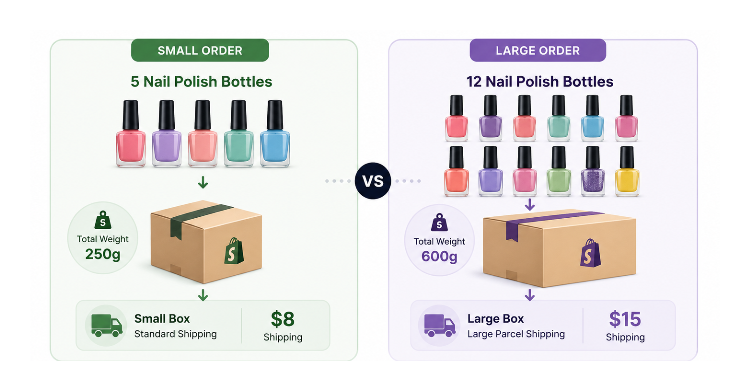
Take a worked example: each nail polish bottle weighs 50g. A small box fits 1 to 5 bottles and a large box fits 6 to 12.
The key thing to understand first is how Shopify calculates the weight it compares against your rate thresholds. Shopify adds your default package weight to the product weight total. The default package weight is set in Settings under Shipping and delivery in the Packages section.
This means you have two options for setting your thresholds:
Option 1: Set your default package weight to 0g. Your thresholds are based purely on product weight. This is the simplest approach.
- Rate 1 (small box): 0g to 250g (1 to 5 bottles at 50g each)
- Rate 2 (large box): 251g to 600g (6 to 12 bottles at 50g each)
Option 2: Leave your package weight as-is and raise your thresholds to account for it. If your default package weighs 100g, Shopify adds 100g to every cart total before checking which rate to apply. Your thresholds need to reflect that.
- Rate 1 (small box): 0g to 350g (up to 5 bottles at 50g each plus 100g box)
- Rate 2 (large box): 351g to 700g (6 to 12 bottles at 50g each plus 100g box)
The table below shows how this plays out per order size with a 100g default package weight:
| Bottles | Product Weight | Package Weight | Shopify Calculates | Rate Applied |
|---|---|---|---|---|
| 1 | 50g | 100g | 150g | Small box |
| 5 | 250g | 100g | 350g | Small box |
| 6 | 300g | 100g | 400g | Large box |
| 12 | 600g | 100g | 700g | Large box |
Most merchants find Option 1 simpler. Set your default package weight to 0g and use clean product-weight thresholds. If you want the package weight factored in for carrier-calculated rates, you can set it accurately there without it affecting your flat rate thresholds.
If you use Option 2 and do not account for the package weight correctly in your thresholds, rates will apply to different cart sizes than you intend. Always confirm what your default package weight is set to before finalising your weight ranges.
Setting Up Weight-Based Rates in Shopify
Go to your Shopify admin. Click Settings in the bottom left, then Shipping and delivery.
In the Shipping section, click the shipping profile you want to edit. If you only have one profile, this is your General profile. Click the shipping zone you want to add rates to.
Click Add rate. From the Rate type dropdown, select Weight. Enter a name for this rate, something the customer will see at checkout like Standard Shipping or Small Order Shipping.
Click Add conditions. You will see minimum and maximum weight fields. Enter the weight range for this rate. Enter the price for this rate. Click Done, then Save.
Repeat for your second rate: click Add rate again, select Weight, name it appropriately, set the minimum and maximum for the heavier range, enter the price, and save.
You now have two weight-based rates. Shopify will show the customer the rate that matches the total weight of their cart at checkout.
Making Sure Your Products Have Weights Set
Weight-based rates only work if every product in your store has a weight value entered. If a product has no weight, Shopify treats its weight as zero when calculating shipping rates, which can cause the wrong rate to apply.
To check, go to Products, open any product, and scroll to the Shipping section. The Weight field should have a value with a unit selected (grams, kilograms, pounds, or ounces). For the nail polish example, every product should have 50g entered.
If you add new products in the future and forget to set their weight, those products will default to zero weight and could cause incorrect rate calculations. Make setting product weight part of your standard product creation process.
Testing Your Rates Before Going Live
After setting up weight-based rates, test them before making your store live.
Go to your store, add a quantity of items to the cart that falls in your first range (for example, 3 bottles at 50g each), and proceed to checkout. Confirm the first rate appears at the correct price.
Then add more items to push the cart into the second weight range and confirm the second rate appears.
If a rate does not appear, the most common causes are a gap or overlap in your weight ranges, or a cart weight that falls outside all defined ranges entirely. Check that the minimum of your second rate is exactly one unit above the maximum of your first rate. For gram-based weights, if Rate 1 has a maximum of 350g, Rate 2 should have a minimum of 351g.
Also check that both rates are in the same shipping zone. Rates in different zones apply to different delivery regions and will not both appear to a customer in the same location.
Carrier-Calculated Rates as an Alternative
Instead of fixed weight-based flat rates, you can use carrier-calculated rates where a carrier like UPS, FedEx, or your local postal service provides real-time shipping costs at checkout based on the order's weight, dimensions, and destination.
When a customer checks out, Shopify sends the order details to the carrier, the carrier returns a live price, and the customer sees that price as a shipping option.
For carrier-calculated rates to work correctly, every product needs an accurate weight, and your default package dimensions need to be set in the Packages section of your Shipping settings. Shopify sends those package dimensions to the carrier when requesting a rate.
One limitation to be aware of: Shopify sends your default package dimensions to carriers for all rate requests. If you use two box sizes depending on order size, there is no native way to tell Shopify which box to use per order. Shopify uses the default package for every carrier rate request, which means smaller orders that would ship in your smaller box may receive slightly inaccurate quotes.
For a store with two clearly defined box sizes and predictable product weights, fixed weight-based flat rates are often more practical than carrier-calculated rates. You set the prices based on your actual carrier costs for each box size, and customers see clean fixed prices rather than variable carrier quotes.
Handling Orders That Exceed Your Largest Box
If customers occasionally order more than your largest box fits, you need a rate for that weight range too. Without a matching rate, no shipping option appears at checkout and the customer cannot complete their order.
Add a third weight-based rate for orders above your upper threshold with a price that reflects the cost of shipping multiple boxes or an oversized shipment.
If you want this rate to be open-ended with no upper limit, leave the maximum weight field empty. That rate will apply to any order above its minimum weight that no other rate covers.
For stores shipping to multiple countries, set up weight-based rates in each shipping zone individually. Rates in one zone do not apply to other zones, so each country or region needs its own set of weight-based rates configured.