How to Control Shopify Product Visibility Based on Inventory at a Specific Location
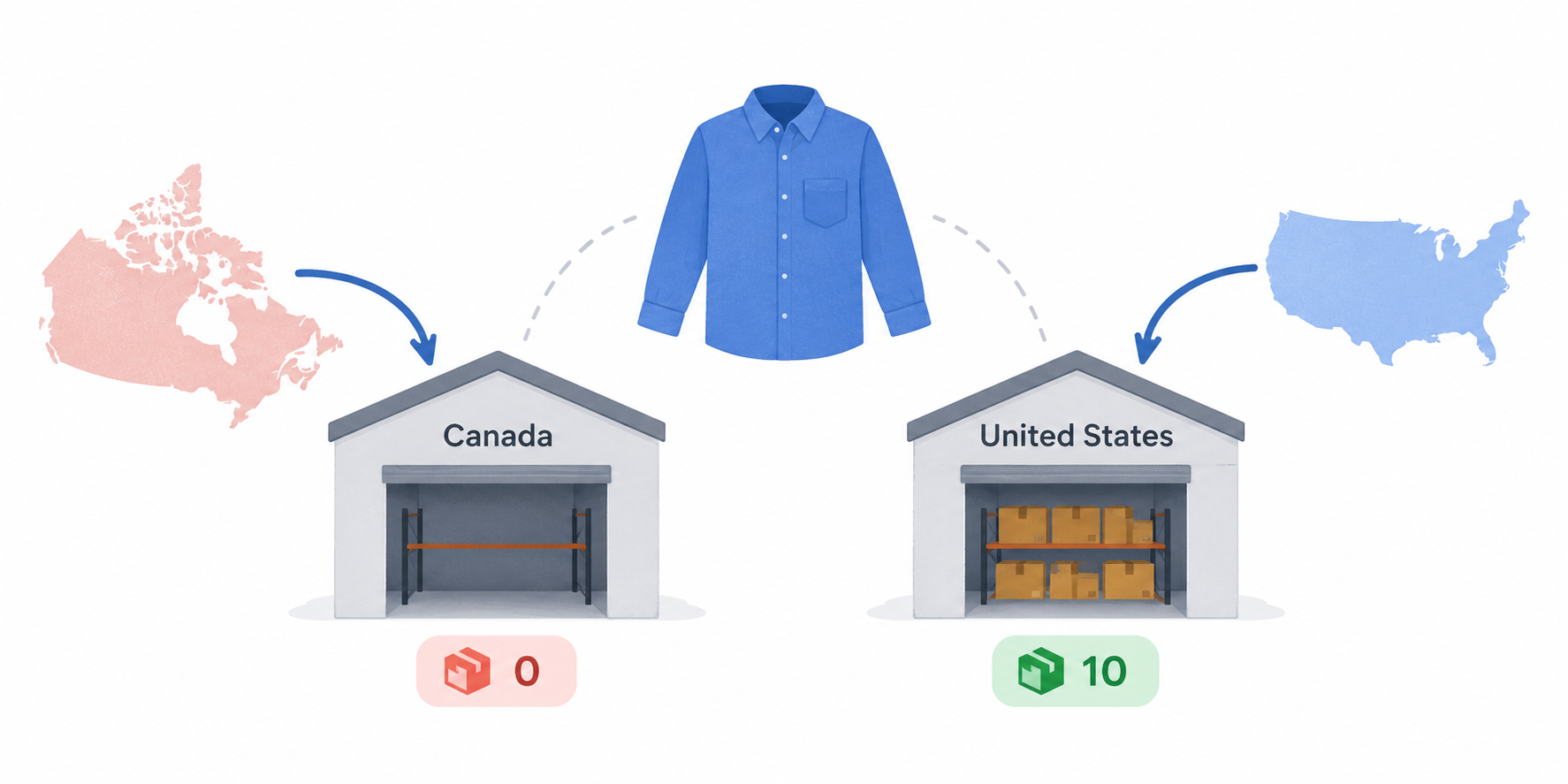
If you have two locations and only want products to appear in your Online Store when location A has stock, you are running into one of Shopify's more frustrating structural limitations. Sales channel availability in Shopify is controlled at the product level, not the variant level, and it is controlled globally, not per location.
Quick answer: You cannot hide individual variants per location — Shopify's architecture does not support this. What you can do is prevent purchase of specific variants using inventory policy when your target location hits zero, or hide the entire product using Shopify Flow when all variants at that location are exhausted. Both approaches are fully automatable without custom code.
This article covers both approaches, a tag-based alternative, and a direct API method for developer-managed stores.

Why Variant-Level Sales Channel Control Does Not Exist
In Shopify's data model, sales channel availability is a property of the Product, not the ProductVariant. When you publish or unpublish a product from the Online Store, that action applies to the entire product and all its variants.
The Bulk Editor in the admin gives the impression of variant-level channel control because it shows variants in a table alongside a channel column. But what you are actually editing is still the product-level publication status, displayed per variant row for clarity. Flow and the GraphQL API expose this honestly: publishablePublish and publishableUnpublish mutations operate on the Product object, not ProductVariant.
This is a confirmed platform architecture decision, not a missing feature waiting to be added.
What You Can Control at the Variant Level
While sales channel availability is product-level, the inventory policy on each variant is variant-level and controls whether a variant can be added to cart when its inventory is at zero.
Setting inventory_policy to deny on a variant means customers cannot add it to their cart when stock reaches zero. The variant remains visible on the product page and appears as sold out, but it cannot be purchased.
Setting inventory_policy to continue means customers can add it to their cart even when stock is at zero.
This is a variant-level property, fully accessible and mutable via the GraphQL Admin API and via Shopify Flow.
If your goal is specifically to prevent orders being placed against empty stock at location A, controlling inventory_policy at the variant level achieves exactly that. The variant stays visible but becomes unpurchasable when the relevant inventory is gone. If you also want the variant to disappear from the product page entirely rather than showing as sold out, that requires unpublishing the product, which removes all variants from the storefront.
Approach 1: Use Shopify Flow to Monitor Location-Specific Inventory
Shopify Flow can check the inventory quantity at a specific named location, which is the key capability here. Shopify's documentation confirms the Product variant inventory quantity changed trigger supports filtering by location using the inventoryLevels relationship.
The workflow structure:
- Trigger: Product variant inventory quantity changed
- Condition: Check
productVariant / inventoryItem / inventoryLevels / availablewhereinventoryLevels / location / nameequals your target location name (or location ID) - If available at location A is less than or equal to zero:
- Option A: Update the variant's
inventory_policytodeny, preventing purchase of this variant - Option B: Add a tag to the product (for example
oos-location-a) to filter it from collections or trigger other logic
- Mirror workflow: When inventory at location A rises above zero, remove the deny policy or remove the tag to restore purchasability
Build both the zero-stock and restock workflows before activating either, so variants are not left permanently unpurchasable if a restock happens while only one workflow is live.
The Product variant inventory quantity changed trigger fires on total inventory changes across all locations. The location-specific check happens inside the condition step, not the trigger itself. Test on a development store before deploying, and verify that your location name in the condition matches exactly how it appears in your Shopify admin, including capitalisation.
Approach 2: Unpublish the Product When All Location A Variants Are Zero
If your product has only one variant, or if you want the entire product to disappear from the Online Store when location A is out of stock for any variant, unpublishing the product is the cleaner solution.
Shopify Flow has a pre-built template for hiding out-of-stock products. The standard template checks total inventory across all locations. To make it location-specific, modify the condition to check location A using the same inventoryLevels filtering described in Approach 1.
The Unpublish product action in Flow operates at the product level and removes the entire product from the Online Store channel. A companion workflow with a Publish product action restores visibility when inventory at location A is replenished.
Approach 3: Tag-Based Collection Filtering
A lighter approach that avoids the publish/unpublish cycle is to use tags to exclude products from your visible collections rather than unpublishing them entirely.
When a product's inventory at location A drops to zero, Flow adds a tag like no-stock-location-a. Your main selling collection uses an automated condition that excludes products with this tag. The product remains published and accessible via direct URL but does not appear in collection browsing.
The downside is that customers who have bookmarked a product URL or who find it through search can still reach the product page, potentially causing confusion. The upside is that this approach is operationally lighter than publish/unpublish and preserves the product URL for SEO purposes.
Approach 4: Inventory Policy on All Variants via API
For developer-managed stores with existing webhook infrastructure, the most precise approach is:
- Subscribe to the
inventory_levels/updatewebhook to monitor inventory changes at specific locations - When a variant's inventory at location A hits zero, call the
productVariantsBulkUpdateGraphQL mutation to setinventoryPolicy: DENYon that specific variant - When inventory at location A is replenished, call the same mutation to set
inventoryPolicy: CONTINUE
This keeps the variant visible on the product page but makes it unpurchasable when your target location has no stock, directly solving the fulfillment problem without affecting overall product visibility or SEO.
Use the GraphQL productVariantsBulkUpdate mutation for this. The REST API endpoint for variant updates is deprecated as of October 2024 and should not be used in new implementations. The inventoryPolicy field is supported in the ProductVariantsBulkInput input object.
Which Approach Fits Which Situation
Single variant products, or products where you want the product to disappear entirely when location A is empty: Flow to unpublish the product when location A inventory hits zero, with a companion workflow to republish on restock.
Multi-variant products where individual variants should become unpurchasable but stay visible: Flow or the API to set inventory_policy: deny on specific variants when location A inventory hits zero.
Stores where collection visibility is the primary concern and direct URL access is acceptable: Tag-based automated collection filtering.
Developer-managed stores with existing webhook infrastructure: The inventory_levels/update webhook plus productVariantsBulkUpdate GraphQL mutation is the most precise and lowest-latency option.
What Cannot Be Done
You cannot make variant A visible in the Online Store while hiding variant B from the same product. Shopify's architecture does not support this. If you need different variants of the same product to have different Online Store visibility, the only workaround is to split them into separate products, which has trade-offs for product page presentation and SEO.
You also cannot use Flow or the API to set channel availability per variant in the way the Bulk Editor appears to suggest. The Bulk Editor interface is misleading here because it shows variants in rows, but the underlying data operation remains product-level.
The approaches in this article work within those constraints to achieve the practical outcome: preventing customers from purchasing variants when your fulfillment location does not have stock.
For non-developer stores, Flow with tag-based collection filtering is the lowest-friction starting point. For developer-managed stores, the webhook plus GraphQL mutation approach gives you the most precise control with the least operational overhead once it is set up.
For a broader understanding of how Shopify tracks inventory across locations — including the Available, Committed, Incoming, and Unavailable states that affect these calculations — the article on Shopify purchase orders, transfers, and incoming inventory covers the full inventory state model.
And for the related problem of automatically hiding products when they go out of stock across all locations rather than a specific one, the article on automatically hiding out-of-stock products using Shopify Flow covers the built-in Flow template that handles this without custom workflow configuration.