You want to back up your Shopify store without paying for another app. You need copies of your products, photos, customer details, and store design that you can keep on your computer.
Shopify lets you download your theme and export your products, customers, and orders. Save your photos and page content alongside those downloads. There is no single download that you can upload later to restore the entire store, so the steps below explain how to save each part.
Create a folder with your store name and today's date before you start. Keep all the copies from this backup together in that folder.
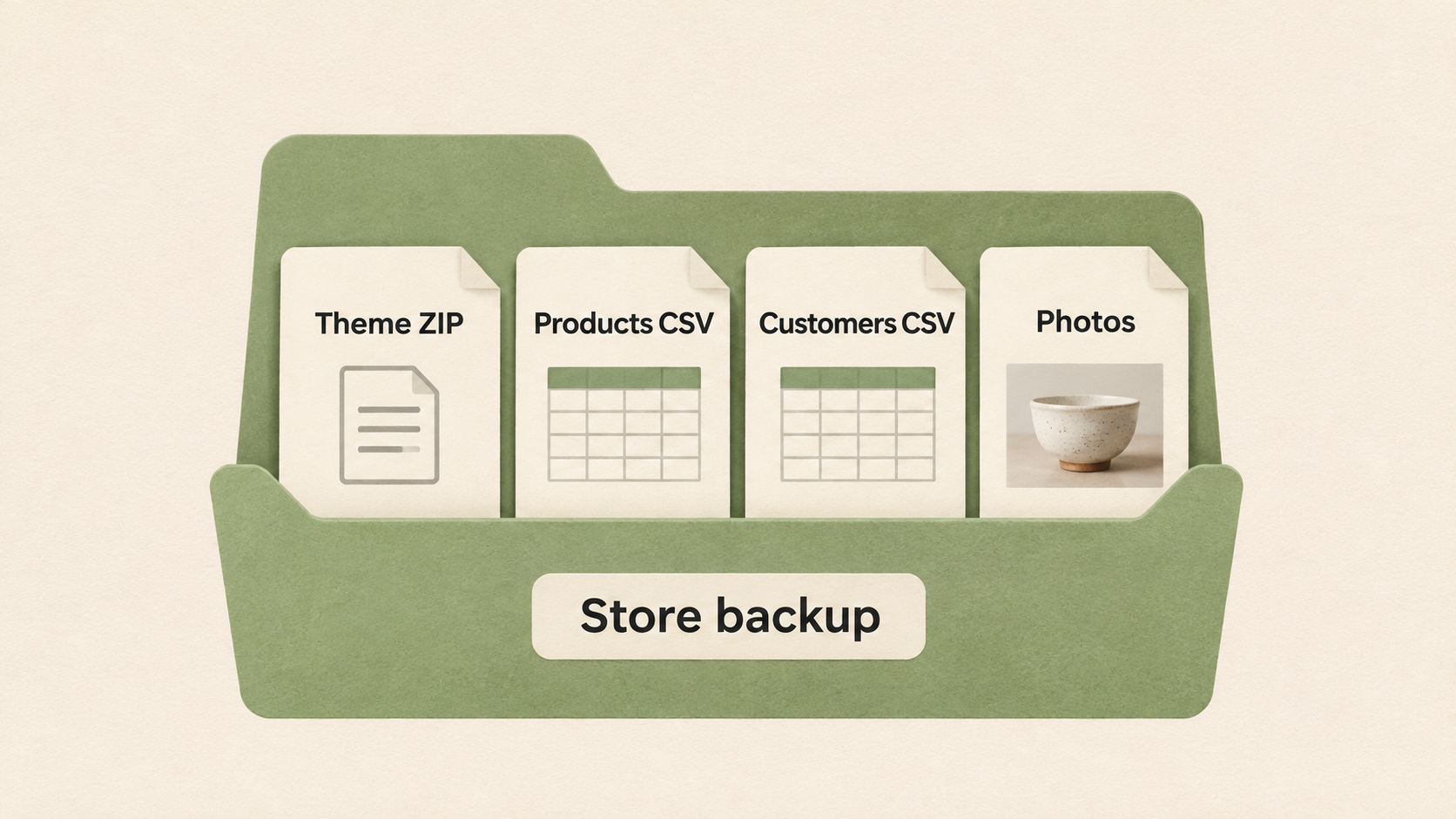
Download your theme
The theme file saves your store's design, code, and theme settings.
- Go to Online Store → Themes.
- Open the three-dot menu beside the theme you want to save.
- Click Download theme file.
- Download the ZIP file from the email Shopify sends you.
To use the saved theme again, go to Themes → Add theme → Upload zip file. Upload the ZIP and preview the theme before publishing it.
The download excludes products, pages, menus, and uploaded images. Shopify lists what the theme file includes here.
For changes you want to try before publishing, you can also make a duplicate theme inside Shopify.
Export your products
- Go to Products → Export.
- Select All products.
- Choose CSV for Excel, Numbers, or other spreadsheet programs.
- Click Export products and download the file from the email.
The CSV is a spreadsheet of product details, including titles, descriptions, variants, and prices. Keep the original file unchanged and make a copy when you need to edit it.
Suppose a bulk edit changes a product's price from $40 to $4. Your earlier export gives you the $40 price to put back. Correct only the affected products so you keep other changes made since the backup.
For an example of editing and importing product fields, see bulk editing Shopify product SEO with a CSV.
Save stock quantities for each location
Save an inventory CSV alongside the product CSV to record how much stock you have at each location.
- Go to Products → Inventory → Export.
- Choose All locations, All states, and All variants.
- Choose the spreadsheet CSV format and click Export inventory.
Stock changes as you sell and receive products. Before importing a saved inventory file, update its quantities to match the stock you have now.
Keep copies of your photos
The product CSV saves image links, so you also need the image files. If the linked images are deleted, the CSV cannot supply the missing photos during an import. Shopify explains this limitation here.
Copy your original product photos into the backup folder. If the photos are only in Shopify, open their links from the CSV and download them. Give each product its own folder so you can identify its photos later.
Keep copies of your logo, homepage banners, videos, and any files customers download too.
Export your customers and orders
Customers
- Go to Customers → Export and select All customers.
- Include Customer tags and Customer metafields if you use those fields.
- Choose the spreadsheet CSV format and click Export customers.
- Save the downloaded or emailed file in your backup folder.
You can add the saved customer details back through Customers → Import. The customer CSV does not recreate their past orders. Shopify lists the customer fields you can import here.
Orders
- Go to Orders → Export.
- Select All orders and choose the spreadsheet CSV format.
- Click Export orders and save the downloaded or emailed file.
This gives you a record of the orders and the items customers bought. Shopify admin cannot import the order CSV. Recreating orders requires an import app or help from a developer, as explained in Shopify's backup documentation.
Save your pages, menus, and settings
Copy page text, blog posts, and collection descriptions into documents. Save each page's title and address with its text.
Record the links in your menus and the conditions used by automated collections. The product CSV does not save which collections each product belongs to.
Take screenshots of settings you would need to enter again, such as shipping rates. For information stored in apps, such as reviews, use the export option provided by that app.
Once the folder is ready, keep a second copy on an external drive or in private cloud storage. Limit access because the customer and order files contain personal details.
Keep your backup up to date
Create a new dated folder for each backup, keeping the earlier copies. Save a fresh backup before large imports, product deletions, or theme changes.
Choose a backup app when you want this work done automatically or need to restore individual products without preparing an import. Check that it covers the information you need to recover and lets you keep a copy outside the app.