Updating SEO on a Shopify store one product at a time does not scale. At 200 products with multiple images each, it turns into hours of repetitive work that most merchants put off indefinitely. The result is a store with inconsistent metadata, missing alt text, and rankings that never quite get where they should be.
Here is what your actual options are, broken down by what you are trying to update.
The Fastest Path (If You Just Want to Get Started)
If you want the shortest route to meaningful improvement, do these in order:
Use Shopify's bulk editor for smaller batches. Go to Products, select your products, click Edit products, then add the SEO title and SEO description columns.
For larger catalogs or more structured updates, export your products CSV, fix meta titles, descriptions, and image alt text in a spreadsheet, and re import.
For a visual editing experience for alt text specifically, a dedicated app is easier than working in a spreadsheet.
The sections below explain each step in detail.
What Shopify's Native Bulk Editor Can and Cannot Do
Shopify has a built in bulk editor you can access by going to Products, selecting multiple products, and clicking Edit products. By default it shows fields like title, price, and inventory, but you can add more columns using the Columns menu.
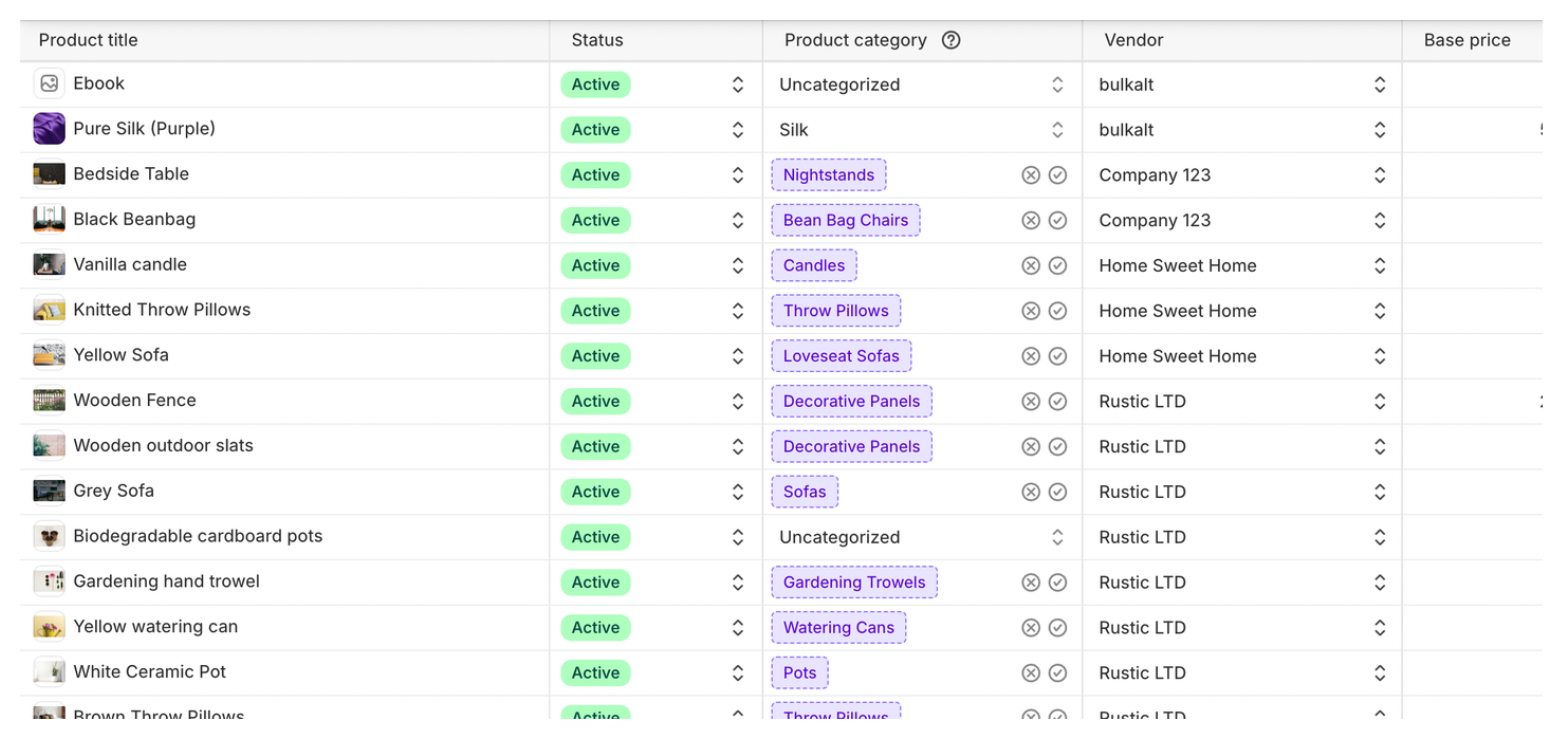
SEO title and meta description are both available as columns in the bulk editor. Click Columns, select SEO title and SEO description, and they appear in the table for you to edit across multiple products at once. This is the fastest way to make quick SEO edits without leaving the Shopify admin or touching a CSV file.
The bulk editor has limitations worth knowing. As you work with larger numbers of products or many columns, it can become slower and harder to manage. For larger catalogs or more page types, the CSV method or a third party app is more practical.
The CSV Method: What It Covers and What to Watch Out For
Shopify lets you export your products as a CSV file, edit the data in a spreadsheet, and import it back. This works for SEO meta titles and meta descriptions on products.
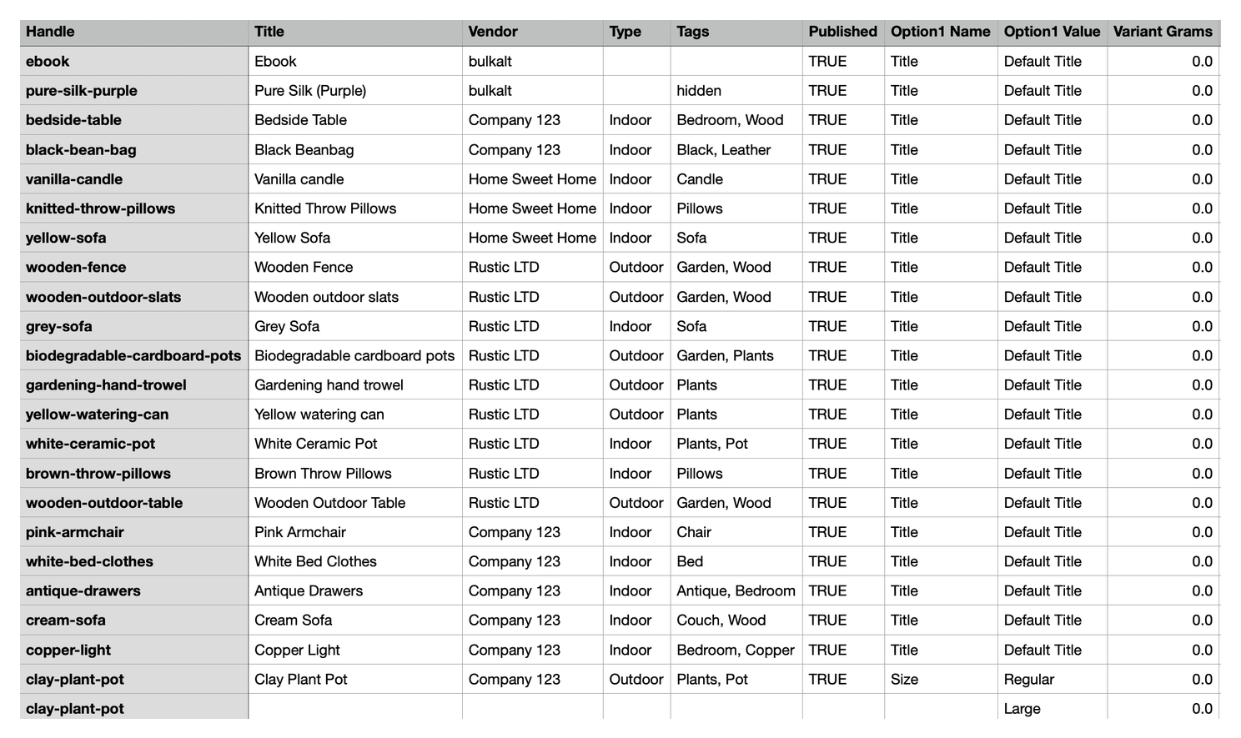
In the CSV, the column labeled "SEO Title" maps to the meta title and "SEO Description" maps to the meta description. You can edit these fields across many products at once in a spreadsheet, then import the file back.
Before you import, do three things:
Keep a copy of your original export as a backup before making any changes. Test your import with two or three products first before running it across your whole catalog. Do not edit any column you do not recognise. Leave unknown fields exactly as they were.
The most important warning in this entire article:
Be careful with the URL Handle column. Shopify uses the handle to match and update products during import. If the handle does not match an existing product, the import may not update it as expected or may create a new product depending on your import settings.
Two other things to know:
The CSV method is designed for products. It does not provide a native workflow for bulk editing SEO fields for collection pages or blog posts. If you want to bulk edit SEO for those, you need a third party app.
If a product's SEO title matches its regular product title exactly, Shopify may not store it as a separate field. Those columns can export as empty. That is normal. Shopify just uses the product title for SEO in that case.
What Good Meta Titles and Descriptions Actually Look Like
Before you start editing, it helps to see the difference between weak and strong versions.
Meta titles:
Weak: "Leather Wallet"
Better: "Men's Slim Leather Wallet, RFID Blocking, Brand Name"
The better version includes who it is for, a key feature, and the brand. It also fits within the 60 character limit where possible. Every product title should follow a similar structure. What it is, who it is for, and what makes it worth clicking.
Meta descriptions:
Weak: "High quality wallet for men."
Better: "Slim RFID blocking leather wallet for men. Holds 8 cards, genuine leather, free shipping on all orders."
The better version is specific, mentions a concrete feature, and gives a reason to click. Keep meta descriptions under 160 characters.
Which Tool to Use for What
Use the native CSV if you are comfortable in spreadsheets and only need to update product meta titles and descriptions. It is free, built into Shopify, and covers most of what a product focused store needs.
Use Matrixify if you need full control and want to update products, collections, blog posts, and metafields in one place. It handles updates using identifiers like product ID, which reduces the risk of mismatches during import. Best for stores with large catalogs or complex data structures.
Use AltMate if you want a visual interface for editing image alt text. The Shopify CSV does support bulk alt text updates via the Image Alt Text column, but editing alt text in a spreadsheet without seeing the images is slow and error prone. AltMate shows every product image alongside its current alt text in a single table, so you can see and edit everything without opening each product individually.
Breaking Down Bulk SEO by Task
Bulk SEO is not one thing. It is several different tasks and each one has a different best approach.
Meta titles and descriptions for products
CSV export and import works natively. Matrixify for more page types.
Image alt text
Supported in the Shopify CSV via the Image Alt Text column. You can bulk update alt text in a spreadsheet and re import. For a visual editing experience where you can see the images as you edit, use AltMate instead.
Collection page SEO
Shopify does not provide a native CSV workflow for editing collection SEO fields at scale. Requires Matrixify.
Blog post SEO
Also not covered natively in bulk. Requires a third party app.
URL handles
Edit with caution. Changing URLs changes the product URL and may require redirects to avoid broken links. Do not bulk edit URLs without a clear plan.
Headings and product descriptions
Editable via CSV for products. The most practical option for on page content changes at scale.
What to Prioritise First
Fix meta titles first. A product with no custom meta title defaults to the product title, which is rarely keyword optimised. This directly affects how your products appear in Google search results and is one of the highest impact changes you can make at scale. For more on how to approach this alongside your other SEO work, how to get organic traffic to your Shopify store covers the full priority order.
Then fix meta descriptions. These do not directly affect rankings but they affect click through rate.
Then tackle image alt text. This is what gets your product images ranking in Google Images, a separate traffic channel worth going after for visually driven products. For more on what good alt text looks like, does alt text help Shopify SEO covers it in detail.
After that, look at collection pages and blog posts. Collection pages in particular can rank well for category level searches and are often completely neglected. If your traffic has plateaued despite doing all of this, why your Shopify store is stuck at low traffic covers the less obvious reasons.
A Note on All in One SEO Apps
There are all in one SEO apps on the Shopify app store that claim to fix your entire store's SEO automatically. Some are useful for specific tasks like submitting your sitemap or adding structured data. Most of the bulk editing features are things you can do yourself with a CSV or a more focused app.
The fundamentals of Shopify SEO, good meta titles, descriptive meta descriptions, accurate alt text, solid on page content, cannot be fully automated without your input. Apps speed up the process of editing, but the decisions about what to write still need to come from you.
Bulk SEO is less about tools and more about choosing the right workflow for each task. Start with meta titles today using a CSV export. That single change, done properly across your whole catalog, can move the needle more than any app.