When a product size or variant is out of stock, Shopify adds the word "unavailable" next to it in the dropdown. It looks something like this: "Medium - Unavailable."
That label quietly kills conversions in a specific way. Customers see the word unavailable, assume they cannot do anything with that option, and skip it. What they do not realise is that clicking an unavailable variant is exactly what triggers the "notify me when back in stock" button.
Because they never click it, the notification button never appears, and you lose a chance to recover that sale when the item is restocked.
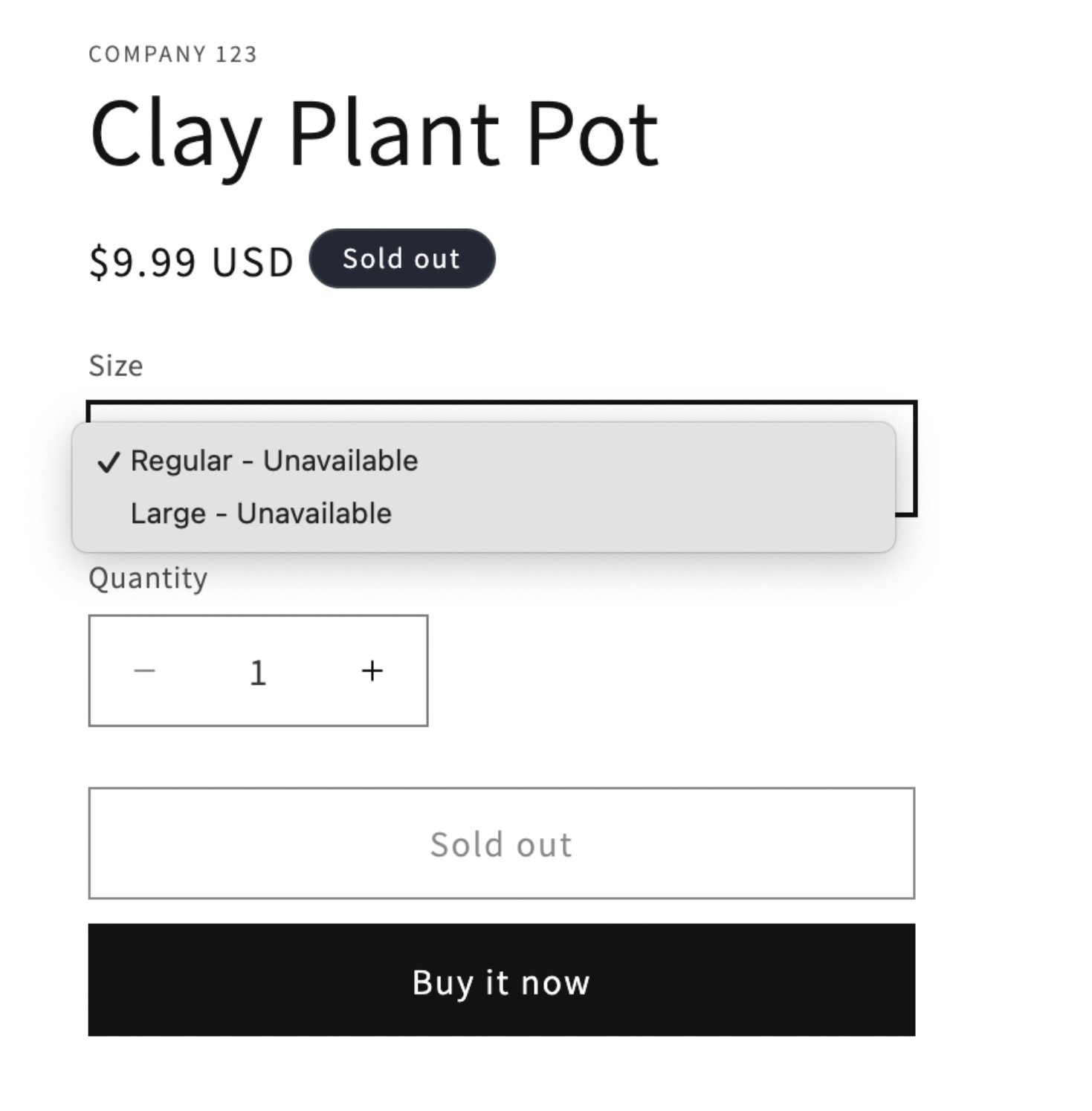
The fix is simple and requires no code. You just remove the word from the theme content settings.
Why the Unavailable Label Exists
Shopify adds this label to help customers know which variants they can actually buy right now. The intention is good, but for stores using back-in-stock notifications, it works against you. The label signals "do not click this" at exactly the moment you want customers to click it.
Removing it does not hide the fact that the variant is out of stock. The variant will still appear visually different from available ones, typically greyed out or strikethrough, depending on your theme. What changes is that the word "unavailable" no longer makes customers feel like clicking the option is pointless.
Where to Remove the Unavailable Label
Go to your Shopify admin. In the left sidebar, click Online Store, then Themes.
You will see your live theme listed. Click the three-dot menu on the right side and choose Edit default theme content.
This opens a content editor with multiple tabs. Each tab controls the text used in a different part of your store. Click the Products tab.
Scroll through the fields until you find one named Value unavailable. The current value will be something like {{ option_value }} - Unavailable.
Delete the - Unavailable part and leave only {{ option_value }}. This keeps the variant name but removes the label.
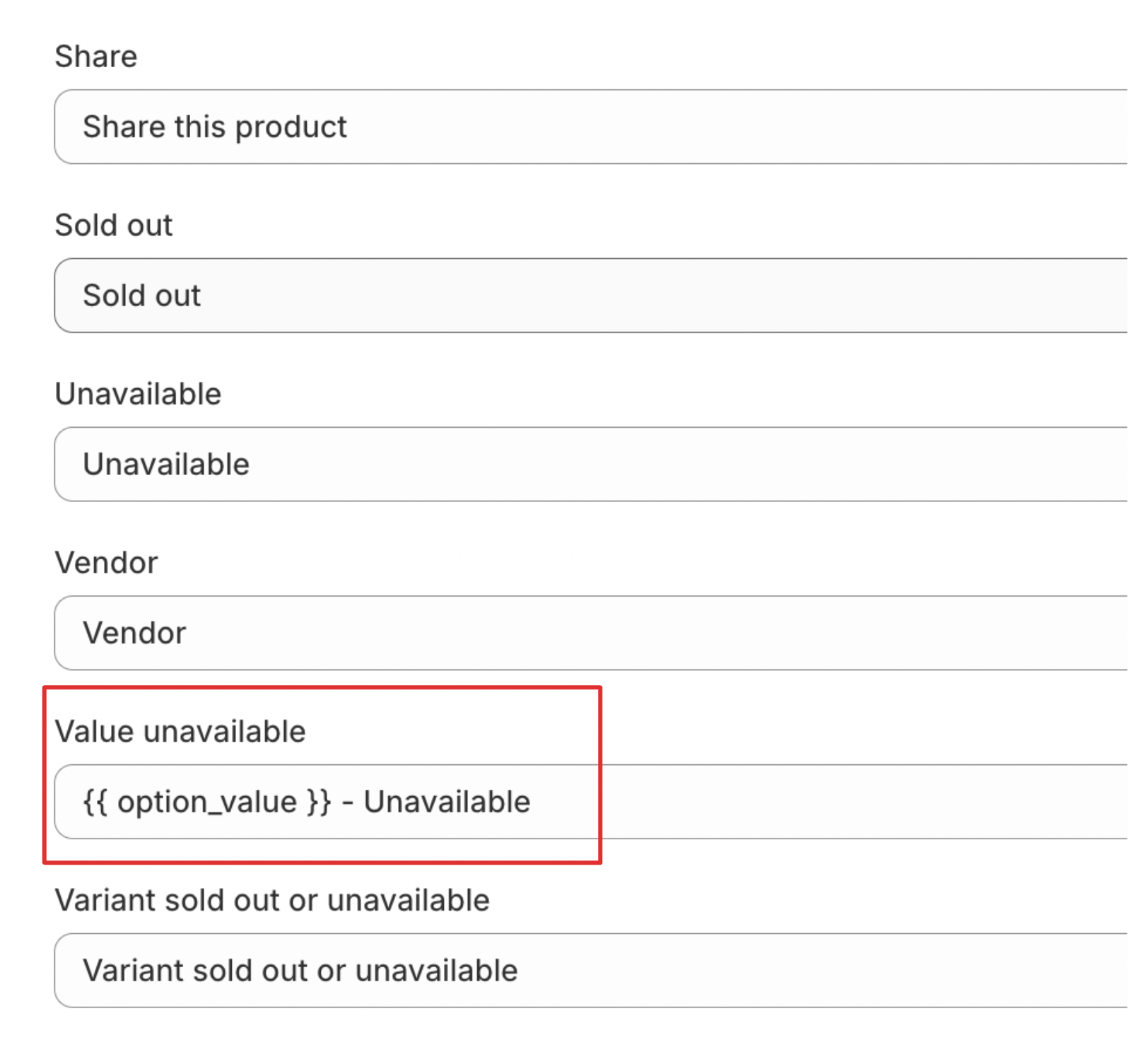
Click Save. The change applies immediately across your store without needing to publish or refresh anything.
What Changes After You Do This
Once the label is removed, your variant dropdown will show the size or option name on its own. "Medium - Unavailable" becomes "Medium." The variant still looks different from in-stock options because most themes apply a visual indicator like a strikethrough or muted colour. Customers can still tell the difference.
But now there is nothing stopping them from clicking the option. When they do, your notify me when back in stock button will appear as expected. That is the moment you can capture their email and follow up when you restock.
If the Field Is Not Showing
Some themes name this field differently or structure their content settings in a way where the exact field label varies. If you cannot find Value unavailable under the Products tab, try searching for the word unavailable using your browser's find function while on the content editor page.
Alternatively, look in the theme code itself. The label is usually defined in a locale file inside your theme, typically found under Locales in the code editor. The English locale file will contain a key like unavailable_with_option or similar. You can remove the suffix text directly from there if the content editor does not expose it.
A Note on Out-of-Stock Strategy
Removing the unavailable label works best when paired with a back-in-stock notification app or a built-in notify me feature in your theme. Without that, customers clicking an out-of-stock variant will land on a variant page with no clear next step.
If your theme does not include a notify me button by default, STOQ handles back-in-stock alerts, preorders, and demand insights — the combination of a clean variant label and a visible notification form is what actually converts the click into a recoverable lead.
Once the item is back in stock, you can also send a custom order confirmation email for that specific product to acknowledge the wait and set expectations for the customer.
If you use purchase orders to restock sold-out items, the Incoming quantity on your inventory page tells you what is already on order before stock physically arrives. The article on how Shopify purchase orders and incoming inventory work covers how to track and manage that reorder visibility.
This is a small change with a specific and measurable impact. If you track how many customers submit back-in-stock requests, you will likely see that number improve after removing the label.