You want a New Arrivals section on your homepage that always shows your latest products without you manually updating it every time you add something new.
The solution is to create a smart collection sorted by newest and connect it to a featured collection section on your homepage. Shopify handles the rest automatically.
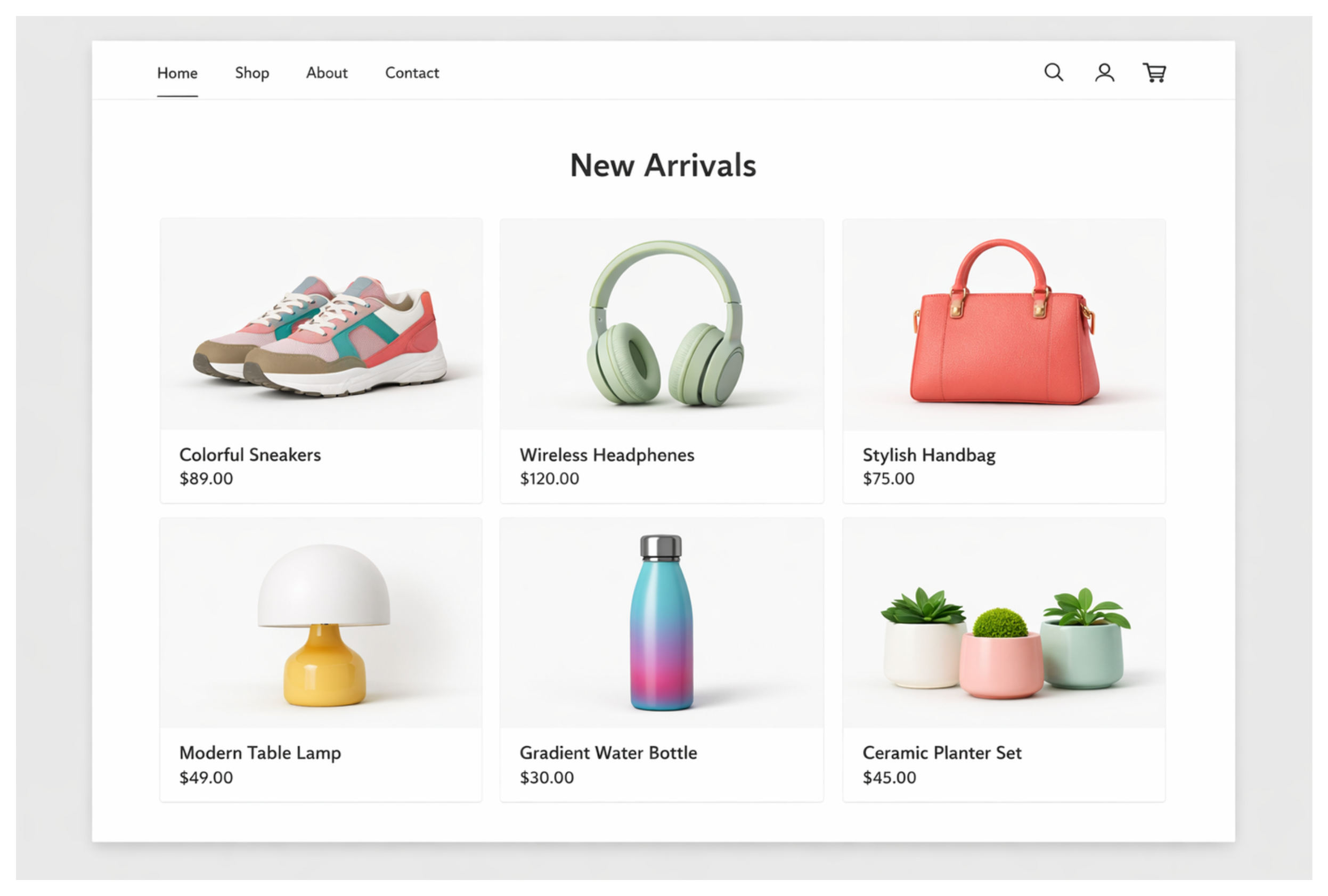
Step 1: Create the New Arrivals Collection
Go to your Shopify admin. Click Products in the left sidebar, then Collections. Click Create collection.
Name it New Arrivals or whatever you want customers to see if this collection has a public-facing page.
Under Collection type, select Automated (sometimes labelled Smart collection depending on your Shopify version).
For the condition, use Product status is equal to Active. This ensures only live, published products appear in the collection. Draft products are excluded automatically.
Save the collection.
Step 2: Set the Sort Order to Newest
After saving, you will see the collection page with your products listed. Near the top right of the product list, find the Sort dropdown. Click it and select Newest.
In Shopify, Newest sorts by the date the product was made active or published, not the date it was created in the admin. If you create a product today but set its publish date to a future date, it will not appear in the collection until that date arrives.
This is actually a useful feature: you can prepare new arrivals in advance and schedule them to go live at a specific date and time, and they will automatically slot into the correct position in your New Arrivals collection when they publish.
Save the sort order. The collection is now ready.
Step 3: Connect the Collection to Your Homepage
Go to Online Store, then Themes. Click Customize to open the theme editor.
Make sure you are viewing the Homepage template. In the sections panel, look for a section called Featured collection. Most current Shopify themes include this section by default. If you do not see it already on the homepage, click Add section and look for Featured collection in the list.
Click the Featured collection section. On the left side, you will see a Collection setting. Click it and select the New Arrivals collection you just created.
You will also see a Products to show setting. Set this to however many products you want to display. Four or six is typical for a homepage row. Setting it too high will make the section run long and push other content far down the page.
Save your changes.
What Happens When You Add New Products
Once this is set up, your workflow stays the same. When you create a new product and publish it, it automatically enters the New Arrivals collection. Because the collection sorts by newest, it appears at the front. The homepage section shows the first few products from the collection, which now includes your new arrival.
No manual update to the homepage is needed. The section is always current.
If a product becomes too old to call a new arrival, it does not disappear from the homepage section on its own. It stays there, it just moves further back in the collection as newer products arrive and push it down. If you want to control this more precisely, you can add the product to a separate collection and remove it from New Arrivals by adding a tag-based condition to the collection rules. The same tagging logic is covered in detail in the article on excluding products from the All collection.
If Your Theme Does Not Have a Featured Collection Section
Not all themes include a Featured Collection section by default, particularly older or heavily customised themes.
In that case you have two options.
The first is to use a Featured products section instead. Some themes include this, and it lets you manually select individual products. This does not update automatically, so it does not achieve what you want.
The second option is to check the Shopify Theme Store for a theme that includes this section, or look for a free section app. The Shopify App Store includes apps that add individual sections to themes without replacing the whole theme. Search for collection section or product grid section and filter by free apps.
Alternatively, if you or a developer is comfortable with Liquid, a featured collection section can be added to any theme by creating a new section file. This is more involved than the setup above but gives you full control over the layout.
Making the Section Title Click Through to the Full Collection
If you want the section heading to link to the full New Arrivals collection page, check the section settings in the theme editor. Most themes show the collection name as the section title automatically and link it to the collection URL.
If your theme does not do this, you can set the collection URL directly in the theme editor section settings under Collection URL or Link, depending on how your theme labels it.
The collection URL for a collection named New Arrivals will be something like /collections/new-arrivals. Customers can browse all your products sorted newest first from that page.