A custom gift box store collects more information per order than most Shopify stores. The customer needs to choose a box size, select items to include, write a gift message, pick a wrapping style, and possibly leave delivery notes. Each of these is a different type of choice, and Shopify handles them differently depending on what they are.
The common mistake is trying to squeeze everything into product variants. Variants work for a small number of fixed, price-affecting choices. For a gift box store where combinations multiply quickly and some choices are open-ended text, variants become unworkable fast. The right setup uses two or three different Shopify mechanisms working together, each doing what it is designed for.
This guide covers exactly what each mechanism does, which of your gift box choices fits each one, and what to do when you need price-affecting options beyond what variants can handle.
Understanding the Three Tools
Before mapping your choices to tools, it helps to understand what each one actually does in Shopify.
Product variants are Shopify's native system for fixed, predefined choices. Each variant is a distinct SKU with its own price and inventory. Shopify supports up to 3 option types per product (for example: Size, Colour, Material) and up to 2,000 variants per product as of early 2025. Variants are the right tool when the choice affects price or inventory and the number of combinations is manageable.
Line item properties are custom fields added to the product page form that collect text, dropdown selections, or checkbox responses from the customer. They travel with the order through to your admin panel and appear on the order detail page so you can see them during fulfilment. The critical limitation: line item properties cannot affect price or inventory. They are purely informational. They require no app and no extra cost, but they need a small addition to your theme code or a theme that supports them natively.
Product options apps are third-party apps that extend Shopify's native options system. They can add more than 3 option types, add price adjustments per option selection, display conditional logic (show option B only if option A is selected), and present choices as image swatches, radio buttons, or dropdowns. They store the customer's selections as line item properties under the hood but handle the price adjustment logic themselves. Hulk Product Options is a well-established app in this category with a strong track record for gift box and custom product setups.
One important note on Shopify Scripts: Shopify previously had a feature called Scripts that allowed price adjustments based on cart contents. Shopify has confirmed this is being removed on June 30, 2026. If you are reading advice that mentions Shopify Scripts as a way to handle custom pricing, that approach will stop working. The current supported path for price-affecting custom options is either native variants or a product options app.
Mapping Your Gift Box Choices to the Right Tool
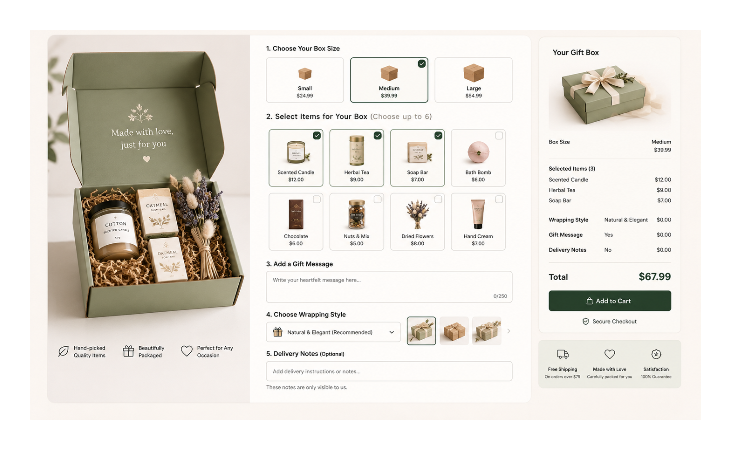
Box size: use variants
Box size is a fixed choice with a direct effect on price. A small box costs less than a large box. This maps cleanly to a native Shopify variant option. Create a product called something like "Build Your Gift Box" and add a variant option called Size with values Small, Medium, and Large. Each size gets its own price.
This is the one choice in a gift box store that variants handle perfectly because it is a discrete, price-affecting selection with a small number of options.
Wrapping style: use variants if it affects price, line item property if it does not
If different wrapping styles cost different amounts, add Wrapping as a second variant option alongside Size. Your variants would then be combinations like Small / Standard Wrap, Small / Premium Wrap, Medium / Standard Wrap, and so on.
If wrapping style is a free choice with no price difference, add it as a line item property instead. A dropdown called Wrapping Style with options like Classic, Floral, Minimal, and Festive collects the information without adding variant combinations.
Using a variant for a free choice is wasteful. Every wrapping option multiplies your total variant count against every size. Three sizes and four wrapping styles with no price difference creates 12 variants where 3 would do.
Gift message: use a line item property
A gift message is open-ended text. There is no meaningful way to express it as a variant. Add a text input field as a line item property with a label like Gift Message. The customer types their message and it appears on the order in your admin when you fulfil it.
This is the cleanest and most common use case for line item properties in Shopify. Many themes include this natively or have a setting to enable it. If yours does not, a short addition to the product form in your theme code adds it.
Items to include in the box: this is the complex part
This is where gift box stores usually need more than native Shopify offers. The customer wants to pick several items from a catalog and add them all to one box. This is not a variant problem. It is a product bundling and selection problem.
There are two practical approaches depending on how your products are structured:
Pre-curated boxes with options apps: Define the possible items for each box size as option selections. A Medium Box might allow the customer to choose 3 items from a list of 10. A product options app handles this as a multi-select option with conditional logic. Each item selection can also carry a price adjustment if some items cost more than others.
Separate items added individually: Let customers add the box as one product and individual items as separate products. This is the simplest approach operationally. The customer adds the gift box product to their cart, then browses your items and adds each one. The downside is it does not create the "build your box" experience where everything happens on one page.
For a true "build your box" single-page experience with item selection, conditional pricing, and a clean interface, a product options app is the practical route. Native Shopify does not have a mechanism for multi-item selection with variable pricing from a single product page.
Delivery notes: use a line item property
Delivery instructions are free-form text with no pricing implication. Add a text field as a line item property labelled Delivery Notes or Special Instructions. It appears on the order alongside the gift message when you process fulfilment.
If the order is being sent to someone else, the shipping address is a separate problem. See how to prevent Shopify using the buyer's address for gift orders.
Tip: Keep the number of open-ended text fields to the minimum actually needed. Each additional field adds cognitive load for the customer. A gift message field and a delivery notes field are both justified. Adding a third and fourth free-text field tends to reduce completion rates.
How Line Item Properties Work in Practice
Line item properties are added to the product form in your theme code. The input uses the naming format properties[Label] where Label is what appears on the order. A text input for a gift message looks like this in the theme form:
<label for="gift-message">Gift Message</label>
<input
  type="text"
  id="gift-message"
  name="properties[Gift Message]"
  placeholder="Write your message here"
/>
When the customer adds the product to their cart, the gift message travels with the line item. In your Shopify admin, opening the order shows each line item property underneath the product name. Your fulfilment team can see exactly what was entered without needing to check any external system.
Properties with a name starting with an underscore are hidden from the customer at checkout but still visible to you in the admin. This is useful for internal notes or system values that the customer does not need to see.
Line item properties are set when the product is added to the cart and cannot be edited after the order is placed. If a customer wants to change their gift message after ordering, you will need to handle that manually by contacting them and noting the change in your fulfilment workflow.
Keeping the Product Page Clean
With multiple types of inputs on one product page, visual organisation matters. A few things help:
Group the choices in a logical order that follows the customer's decision process. Box size first (it is the primary choice), then items, then personalisation options like wrapping and message, then delivery notes last.
Use clear labels on every field. "Gift Message (optional)" is better than "Additional Information." Customers fill in fields correctly when they understand immediately what is being asked.
If you use a product options app, most of them include conditional logic that shows or hides options based on previous selections. This is worth using. A customer who selects a Small Box does not need to see item options intended for the Large Box. Showing only relevant options keeps the page focused.
What to Do About Pricing for Item Add-ons
If the items a customer selects inside the box affect the final price, you have two options.
Flat rate per box size: Price each box size to include a fixed number of items. A Small Box includes 3 items for a flat price. This removes pricing complexity from the customer experience entirely. If they want to add more items, they buy a larger box.
Per-item pricing via a product options app: The app adds a price adjustment for each item selected. The cart total updates as the customer makes selections. This is technically more complex but gives customers a transparent per-item view of what they are paying for.
The flat rate approach is simpler to manage and tends to convert better because customers see a single clear price. Per-item pricing requires the customer to track a running total mentally while browsing, which adds friction.
A Practical Setup Recommendation
For a gift box store just getting started, this combination works cleanly without requiring custom development:
Use native variants for box size only. Keep it to the choices that directly affect price.
Add line item properties for gift message, wrapping style (if free), and delivery notes. These require a small theme edit or a theme that supports them natively, but they are free and work reliably.
Use a product options app for item selection within the box if you want a single-page build-your-box experience with price adjustments per item. This is the one place where a paid app is genuinely the right tool.
As your store grows and you understand what customers actually want, you can layer in more complexity. Starting with the simplest version that works gives you clean order data to build on.
For managing the pricing side of your gift box products, the guide on showing compare at price on Shopify product pages is worth reading if you plan to run periodic deals on box bundles.
If you also want to schedule specific boxes to go live at particular times (seasonal launches, limited-edition holiday boxes), scheduling product availability in Shopify covers that workflow.
And once orders start coming in, sending custom confirmation emails per product lets you send a tailored post-purchase message for gift box orders specifically, which sets expectations around fulfilment time and personalisation details.