A short dip in rankings after a platform migration is normal and expected. The difference between merchants who recover quickly and those who spend months trying to claw back lost traffic almost always comes down to how much preparation they did before switching the domain over.
Here is what actually matters and what to do before, during, and after the migration.
Understand What Is About to Change
Wix and Shopify use different URL structures. Every URL on your store will change after migration, which means Google has to relearn where everything lives. If you do not tell it where things moved through redirects, it will treat your old URLs as gone and remove them from its index.
Wix product URLs are often structured like:
yoursite.com/product-page/blue-ceramic-mug
Though some Wix stores use custom slugs depending on how SEO settings were configured. Check your actual URLs before assuming the structure.
Shopify product URLs look like this:
yoursite.com/products/blue-ceramic-mug
Wix blog posts are often structured like:
yoursite.com/post/how-to-care-for-ceramics
Shopify blog posts look like this:
yoursite.com/blogs/your-blog-handle/how-to-care-for-ceramics
Note that the blog handle in Shopify is customisable and is not always “news,” so check what handle your theme uses.
Wix pages such as About, Contact, and FAQ use flexible custom URLs. Shopify puts everything under /pages/.
Every one of these changes needs a redirect. There are no exceptions for pages that rank.
Before You Go Live: The Preparation Work
Crawl your entire Wix site and export every URL.
Use a free tool like Screaming Frog (free up to 500 URLs) or export from Google Search Console. Go to the Pages report in Search Console and look at every URL Google has indexed. Export this list. This is your redirect map starting point.
Record your current rankings as a baseline.
Take a screenshot of your Google Search Console performance report showing your top queries and pages. You need this to compare against after migration so you know whether rankings have recovered or not.
Copy every meta title and meta description from your Wix pages.
Wix does not export meta titles and descriptions automatically when you migrate data. You need to manually record these for every product, collection, page, and blog post that ranks. A spreadsheet with one row per URL, including the old URL, the new Shopify URL, the meta title, and the meta description, works fine.
Shopify will auto-generate meta titles from your product names if you leave the fields blank. Poorly optimised auto-generated titles can reduce keyword relevance and click-through rates compared to titles you wrote deliberately. Preserving your original titles maintains snippet consistency and CTR, which affects how much traffic you get even when rankings hold.
Note that Wix has no blog export feature.
Unlike products which can be exported via CSV, Wix does not give you a way to export your blog posts. Every blog post has to be manually copied into Shopify's blog editor. If your blog posts drive significant traffic, preserve the exact heading structure (H1, H2, H3) and internal links as you copy them over.
Check and reapply image alt text.
Wix image alt text does not transfer automatically during migration. After rebuilding your store in Shopify, go through your product images and verify that alt text has been added. Image file URLs will also change, so any external links pointing directly to image files will break. For a large catalog, AltMate lets you see and update all your image alt text from a single table rather than opening each product individually.
Setting Up Redirects in Shopify
Once your Shopify store is built but before you point your domain at it, set up your redirects.
In Shopify admin, go to Online Store, then Navigation, then URL Redirects. You can add redirects one at a time or bulk import via CSV. The CSV format needs two columns: Redirect from (your old Wix URL path) and Redirect to (your new Shopify URL path).
Prioritise in this order. Product pages first, since these have the most links and traffic. Collection or category pages second. Blog posts third, especially any that have backlinks from other sites or rank for specific queries. Static pages such as About, Contact, and FAQ last.
Watch out for redirect chains. If you already have intermediate redirects set up, for example old Wix URLs that redirect to other Wix URLs, make sure your final redirects point directly to the new Shopify URL rather than through a chain. Each redirect in a chain reduces the SEO value passed along and slows down page loading. Aim for direct one step redirects wherever possible.
A redirect from /product-page/blue-ceramic-mug to /products/blue-ceramic-mug tells Google and any visitors clicking old links exactly where to go. Without it, they hit a 404 and Google loses confidence in your site.
On Launch Day
Point your domain to Shopify through your domain registrar's DNS settings. Do not do this until your redirects are in place and your Shopify store is fully built and tested.
Submit your new Shopify sitemap to Google Search Console immediately. Your sitemap is at yourdomain.com/sitemap.xml. This tells Google to start crawling your new URL structure right away.
Verify that Google Analytics and any other tracking pixels are firing correctly before you go live. A migration is a common point where tracking breaks.
After launch, update internal links throughout your site to point directly to new Shopify URLs rather than relying on redirects. Redirects work, but direct internal links are faster to crawl and reduce unnecessary load. This is especially important for blog posts that link to product pages.
After Launch: What to Monitor
404 errors. Check Google Search Console every few days for the first month under the Coverage report. Every 404 that appears needs a redirect added.
Canonical tags. Shopify handles canonicals well by default, but check that no apps or theme modifications have introduced mismatches. A page with a canonical tag pointing to the wrong URL can confuse Google and dilute ranking signals. Use the URL Inspection tool in Search Console to verify canonical tags on your most important pages.
Index bloat. After migration, check what Shopify is allowing Google to index. Filter pages, tag pages, and internal search result pages can accidentally get indexed and dilute your SEO. Check the Coverage report for unexpectedly high numbers of indexed pages and use your robots.txt or canonical tags to exclude pages you do not want indexed.
Structured data. Your Shopify theme may not replicate the structured data Wix had. Check that product schema (price, availability, ratings) is present and valid using Google's Rich Results Test at search.google.com/test/rich-results. Missing product schema can cause you to lose rich result appearances in search.
A ranking fluctuation of two to four weeks is normal after any platform migration. If your redirects are complete and your metadata is preserved, most stores stabilise at their pre-migration traffic levels within four to eight weeks.
If rankings have not recovered after eight weeks, the most likely causes are missing redirects on important pages, auto-generated titles that reduced click-through rates, blog content rebuilt without preserving heading structure and internal links, or canonical tag mismatches introduced by apps.
Migration Checklist
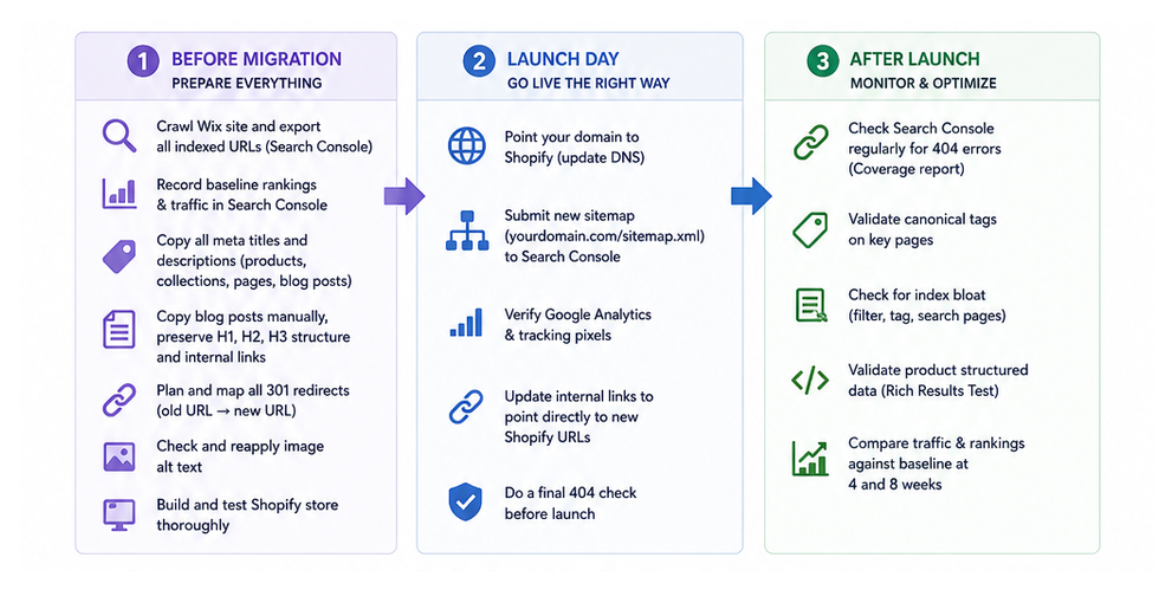
Before going live:
Crawl Wix site and export all indexed URLs from Search Console
Record baseline rankings and traffic in Search Console
Copy all meta titles and meta descriptions manually
Copy all blog posts manually, preserving H1, H2, H3 structure and internal links
Set up all URL redirects in Shopify, direct one-step redirects only
Verify image alt text has been applied to all product images
Test the Shopify store fully before switching the domain
On launch day:
Switch domain DNS to Shopify
Submit new sitemap to Google Search Console
Verify Analytics and tracking pixels are firing
Update internal links to point directly to new Shopify URLs
After launch:
Check Search Console every few days for 404 errors
Validate canonical tags on key pages
Check for index bloat in the Coverage report
Validate product structured data with Rich Results Test
Compare traffic and rankings against baseline at four and eight weeks
What You Are Actually Gaining
Shopify generates clean sitemaps automatically, handles canonical tags correctly, and performs better on Core Web Vitals by default, particularly on mobile, which is what Google primarily uses for ranking.
Merchants who do the migration work properly typically do not just preserve their rankings. They often see improvements within a few months because the Shopify technical foundation is stronger than what Wix provides.
For more detail on finding and fixing 404 errors after a migration, how to catch missing 404 redirects after migrating to Shopify covers the process in depth. The approach applies equally whether you are coming from Wix or WooCommerce.