You removed a batch of products that were not selling. Now Google Search Console is full of 404 errors for those old URLs, and some of those pages used to get real traffic. You want to fix them, but doing 200 redirects one by one is not realistic.
This guide covers how Shopify's redirect system works, how to set up bulk redirects from a CSV file, how to decide which 404s are worth fixing, and what actually happens to the SEO value from external links pointing at deleted pages.
What Happens When You Delete a Shopify Product
When you delete a product in Shopify, its URL immediately starts returning a 404 error. There is no automatic redirect and no grace period. The next time Google crawls that URL, it sees the page as missing and will eventually remove it from the search index.
Any SEO value tied to that page is affected immediately. That includes:
- Rankings for search queries
- External backlinks pointing to the product
- Internal links from collections, blogs, or navigation
If users or search engines still visit the old URL, they hit a dead page unless you create a redirect.
Important: Shopify only applies redirects to URLs that already return a 404. You cannot redirect a URL that still loads a live product page.
Archiving a product behaves differently inside Shopify admin, but the storefront result is similar. Archived products are hidden from the storefront and their URLs return a 404, which means redirects work the same way. The advantage is that archived products can still be restored later, while deleted products are removed permanently.
Step 1: Export Your 404 List From Google Search Console
The most reliable source for your redirect list is Google Search Console, because it shows exactly which URLs Google has already crawled and indexed. These are the URLs that matter most for SEO.
Go to Google Search Console and click on Pages in the left sidebar under Indexing. Look for the section called Not Found (404). Click on it to see the full list.
You can export this list by clicking the Export button in the top right of the report. Download it as a spreadsheet. This gives you every URL that Google knows about and is currently hitting a 404 on your store.
Tip: Sort the exported list by Impressions or Last crawled before you start working through it. URLs with higher impressions had more search visibility and should be prioritised. URLs that were last crawled a long time ago with no impressions are likely safe to ignore.
Step 2: Decide Where Each 404 Should Redirect
Before building your CSV, you need to decide what each broken URL should redirect to. You have three sensible options:
Redirect to a closely related product. If you deleted a product that has a clear replacement or near-equivalent still in your catalog, redirecting directly to that product gives users and Google the most relevant destination. This is the best option when it exists.
Redirect to the most relevant collection. If there is no single product replacement, redirect to the collection that contains the most similar products. A deleted blue ceramic mug with no replacement should redirect to your mugs or ceramics collection, not your homepage.
Redirect to the homepage as a last resort. Redirecting everything to the homepage is tempting because it is fast, but it is the weakest option for SEO. Google treats a mass redirect to a single unrelated page as a soft 404, meaning it may treat the redirect as a failed page rather than a real destination. Use homepage redirects only for URLs that had no meaningful traffic and no specific replacement.
For your high-traffic URLs, take the time to map them individually. For the long tail of low-traffic URLs, a collection-level redirect is a reasonable and honest destination.
Step 3: Build Your CSV File
Shopify's bulk redirect import uses a simple two-column CSV file.
Open a spreadsheet and create two columns with these exact headers in row 1:
Redirect fromRedirect to
In the Redirect from column, enter the old URL path without the domain. For a deleted product at yourstore.com/products/blue-ceramic-mug, the value is /products/blue-ceramic-mug.
In the Redirect to column, enter the destination. You can use a relative path like /collections/ceramics or a full URL. Using relative paths is cleaner and works correctly if your domain ever changes.
One row per redirect. Save the file as a CSV.
Before you import: Double-check that none of your Redirect from paths point to URLs that are still live. Shopify will only process redirects for URLs returning 404 errors. If a URL still loads a valid page, the redirect will not take effect. Also check for typos in your paths — a missed slash or a spelling error means the redirect simply will not fire.
Step 4: Import the CSV Into Shopify
In your Shopify admin, go to Content in the left sidebar, then click Menus. At the top of the page, click URL redirects. In the top right corner of the URL redirects page, click Import.
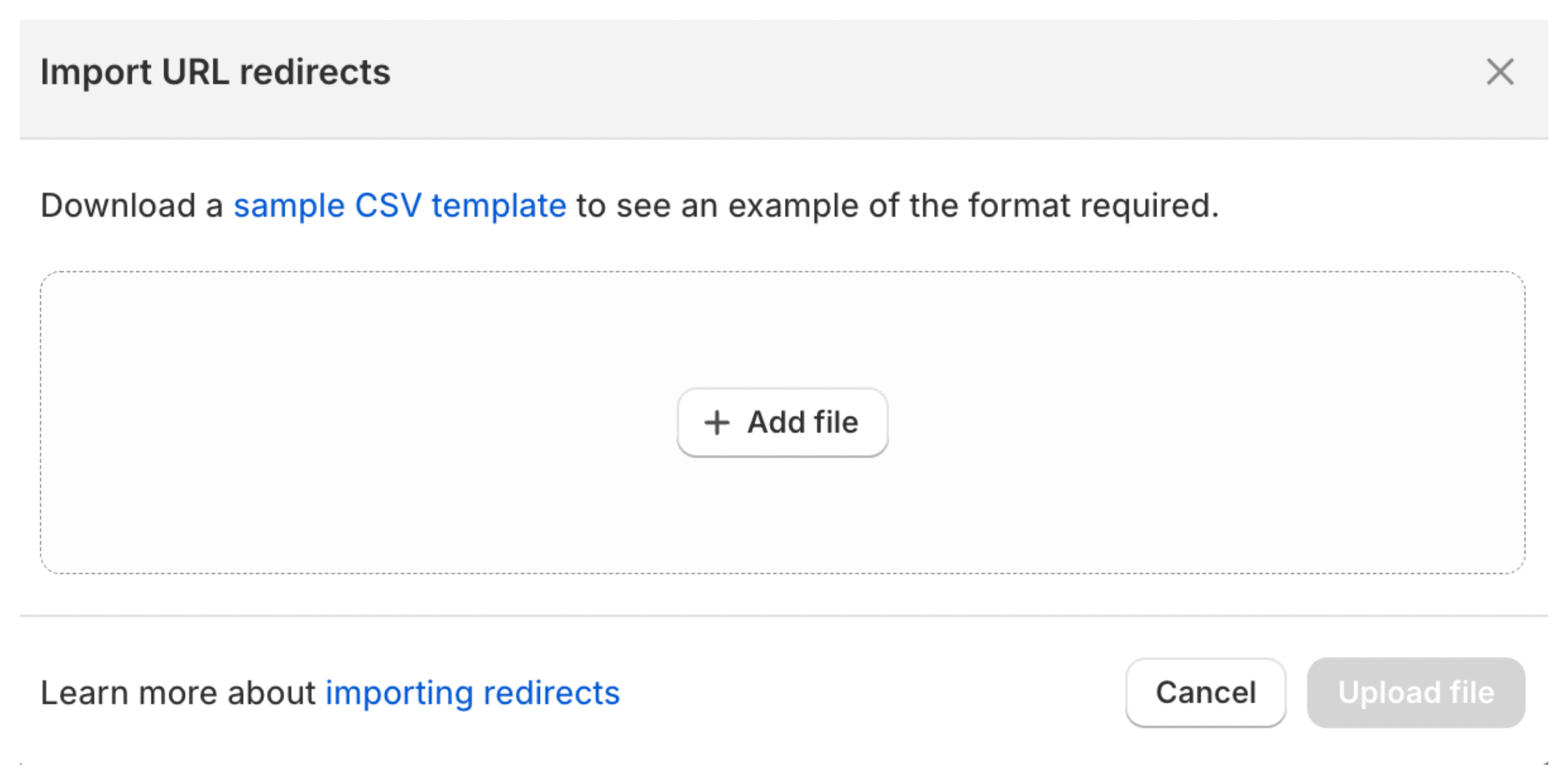
Click Add file and select your CSV. Shopify will show you a preview of the redirects it found in the file and the total count. Review this before confirming. Click Import redirects.
If you prefer a dedicated app with a visual redirect manager rather than working through CSV files, SC Easy URL Redirects handles bulk redirects and 404 monitoring from a single dashboard.
Shopify processes the file and creates all the redirects. For a file with a few hundred redirects, this takes seconds.
After importing, test a handful of the old URLs by visiting them in an incognito browser window. You should land on the correct destination. If a URL still shows a 404, check whether it was entered correctly in the CSV and whether it is genuinely returning a 404 rather than loading a page.
What Shopify's Redirect System Cannot Do
Knowing the limitations saves you time when you hit them.
Wildcard redirects are not supported natively. You cannot create a single rule that says "redirect everything under /products/old-category/ to /collections/new-category/." Every redirect must be an explicit one-to-one mapping. If you have hundreds of products that all followed a similar URL pattern, you still need a separate row in your CSV for each one.
Shopify also does not allow redirects for certain reserved paths. You cannot create redirects that start with /products, /collections, or /collections/all as the destination is irrelevant here — these are reserved by Shopify at the system level. You also cannot redirect /cart, /orders, or /apps paths.
The maximum number of URL redirects on standard Shopify plans is 100,000. For a catalog cleanup, you are nowhere near this limit, but it is worth knowing if you ever need redirects at scale.
The SEO Value Question: What Happens to External Links
If pages you deleted had external links pointing to them, backlinks from other websites, those links currently point to a 404 page, which passes no SEO value. A 301 redirect restores that value by telling Google and other search engines that the page has moved permanently. The link equity associated with the old URL transfers to the redirect destination.
This is why fixing redirects on high-traffic pages matters. It is not just about preventing a bad user experience. It is about recovering link equity that is currently being wasted on a dead URL.
The important caveat is that redirecting to a genuinely related destination transfers the value much more cleanly than redirecting to an unrelated page or the homepage. Google is good at recognising when a 301 redirect leads somewhere relevant versus somewhere generic. A redirect from a deleted product to a closely related product or its parent collection is treated as a legitimate permanent move. A redirect from every deleted product to your homepage is more likely to be discounted.
For pages that had significant backlinks, spend the extra few minutes finding the right destination rather than defaulting to the homepage.
Should You Fix Every Single 404?
No. Prioritise your effort based on what those URLs actually had.
Fix immediately: Any deleted product URL that appeared in your Google Search Console impressions report with more than a handful of impressions. Any URL you know had external links pointing to it. Any URL that appeared in your sitemap.
Fix if easy: URLs from products that were in active collections or linked from other pages on your site. These may not have external links but they could affect internal crawl efficiency.
Safe to leave: URLs for products that had zero impressions in Search Console, no known backlinks, and were never linked from anywhere meaningful. Google will eventually stop crawling these URLs and drop them from its index naturally. A 404 that nobody visits causes no real damage.
The goal is not a zero-404 store. It is making sure the 404s that exist are for genuinely obscure pages nobody cares about, not pages that used to drive traffic or have links pointing at them.
Preventing This Problem in the Future
If you plan further catalog cleanups, a small process change saves cleanup work later.
Before deleting a product, check its URL against your Search Console impressions data. If it has impressions, note the URL and set up the redirect before or immediately after deletion. This takes 30 seconds per product and means you are never chasing a backlog of 404s after the fact.
You can also archive products instead of deleting them when you are unsure. An archived product returns a 404 and can be redirected, but it remains in your Shopify admin so you can see its history. If you later realise a deleted product had more traffic than you thought, an archived product can be restored whereas a deleted one cannot. If you are managing a large backlog of discontinued products and need a framework for deciding what to archive, delete, or redirect in bulk, the guide on cleaning up discontinued products in Shopify covers that decision process in full.
If you are managing a large catalog with regular turnover, the WooCommerce to Shopify migration redirect guide covers the same CSV import process in a migration context and is worth reading alongside this one.