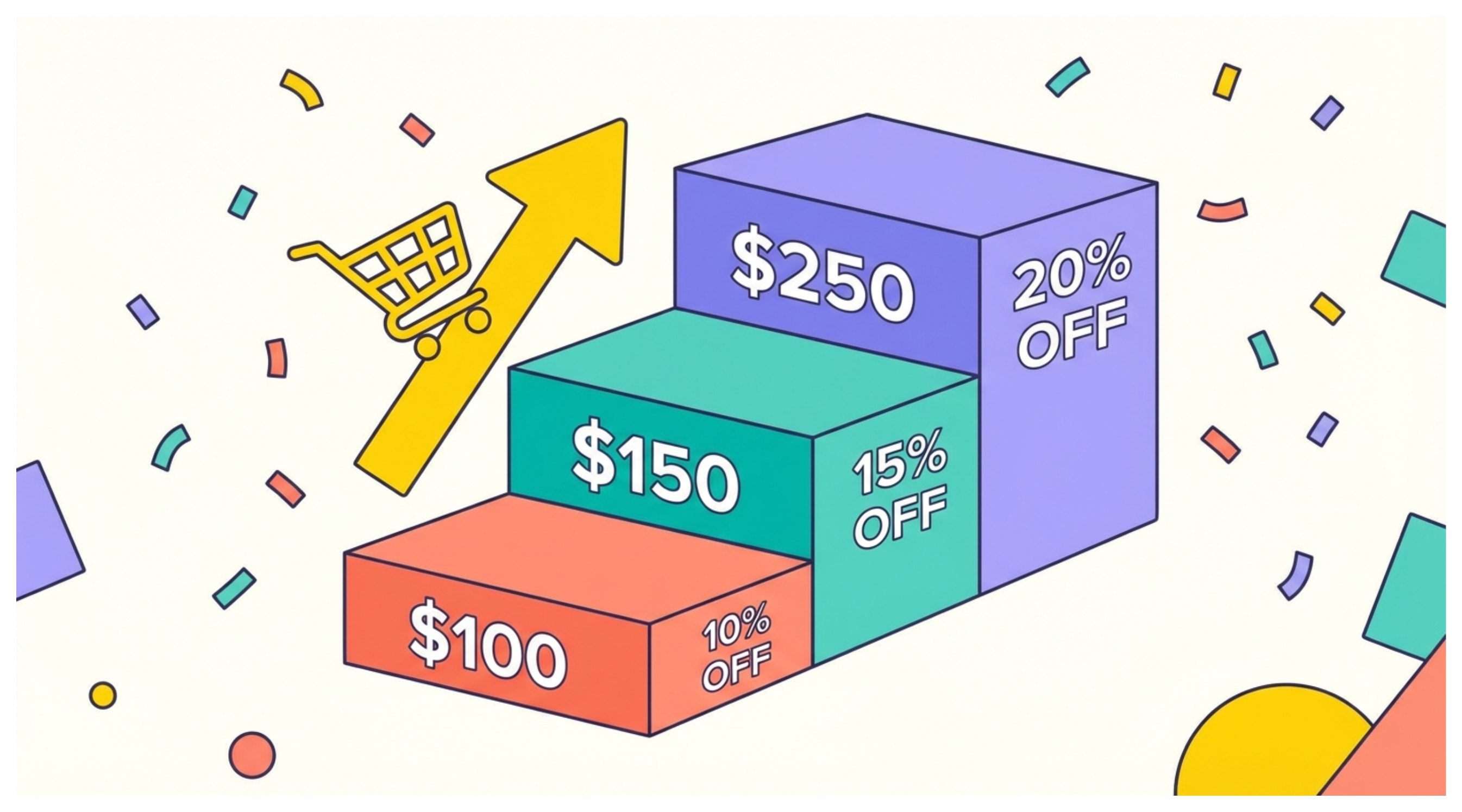
You want to reward customers who spend more. A common structure looks like this:
Spend $100 and get 10% off
Spend $150 and get 15% off
Spend $250 and get 20% off
Shopify lets you create this without any third-party app by using automatic discounts with minimum purchase requirements. Before you set this up, there is one important limitation to understand.
The Important Limitation: Shopify Only Applies One Automatic Discount
By default, Shopify applies only one automatic discount per order. If a customer qualifies for multiple automatic discounts, Shopify applies the one that gives them the largest saving, not a combination of all of them.
This means the tiered structure works correctly. A customer spending $250 qualifies for all three discounts, but Shopify applies only the 20% tier, which is the best value for them. A customer spending $120 qualifies for the 10% discount but not the higher tiers, so 10% applies.
The system works as a tiered structure because each tier has a higher minimum than the previous one. Shopify picks the correct tier automatically.
What this does not support is stacking. If you wanted a customer to get 10% from one discount and a separate 5% from another simultaneously, that requires Shopify Plus (which has a discount combination feature) or a third-party app. For a standard tiered spend structure, the single automatic discount behavior is exactly what you need.
How to Create Each Tier
You will repeat this process three times, once for each discount level. The steps are identical each time; only the percentage and minimum purchase amount change.
Step 1: Open Discounts
Go to your Shopify admin. Click Discounts in the left sidebar. This shows all your active discount codes and automatic discounts. Click Create discount.
Step 2: Choose Amount Off Orders
In the discount type selector, choose Amount off orders. This type lets you set a minimum order value as a trigger condition, which is what makes tiered discounts possible.
Do not choose Amount off products. That type applies discounts to specific line items rather than the order total, and minimum purchase requirements behave differently there.
Step 3: Set It as Automatic
Under Method, select Automatic discount. Give it a clear internal name like Tier 1 - 10% off $100+ so you can identify it later. Automatic discounts apply at checkout without the customer needing to enter a code.
Step 4: Set the Percentage
In the Discount value section, choose Percentage and enter the percentage for this tier. For the first tier, enter 10. For the second, 15. For the third, 20.
Step 5: Choose What It Applies To
Under Applies to, choose All products unless you want the discount to apply only to specific collections or products. If you select specific collections or products, the minimum purchase requirement in the next step will be calculated based on the subtotal of only those items, not the entire cart.
For a sitewide tiered discount, leave this set to All products.
Step 6: Set the Minimum Purchase Amount
Open the Minimum purchase requirements section and select Minimum purchase amount. Enter the threshold for this tier: 100 for the first discount, 150 for the second, 250 for the third.
This is the cart subtotal the customer must reach before this discount activates.
Step 7: Set Customer Eligibility
Under Customer eligibility, All customers is selected by default. Leave this as-is for a public tiered discount. If you want to limit the discount to specific customer segments or individual customers, you can narrow it here.
Step 8: Set Active Dates
Set a start date. If the promotion is permanent, leave the end date blank. If it is time-limited, set an end date and Shopify will deactivate the discount automatically when it expires.
For more control over exactly when a sale period starts and ends, you can pair this with scheduled product publishing to show sale-specific products or collections only during the discount window.
Save the discount. Then repeat all eight steps for the remaining tiers.
Verifying the Tiers Work Correctly
Once all three discounts are active, test them before announcing the promotion. Go through your store in a private browser window and add products to your cart.
Add enough to reach each threshold and proceed to checkout. At checkout, the discount should appear automatically in the order summary without the customer entering a code.
Check each tier:
Cart subtotal just under $100: no discount should apply
Cart subtotal between $100 and $149: 10% should apply
Cart subtotal between $150 and $249: 15% should apply
Cart subtotal of $250 or above: 20% should apply
If the wrong tier is applying, check that each discount has the correct minimum amount and that all three are set to active.
Communicating the Tiers to Customers
Shopify does not display tiered discount information to customers automatically. The checkout will show the applied discount, but customers browsing your store will not see a progress indicator or any mention of the tiers unless you add it yourself.
Common ways to communicate this include an announcement bar at the top of your store showing the tier structure, a note in the cart template, or a banner on collection pages. Most Shopify themes support an announcement bar through the theme editor without any code changes. A timed popup is another low-effort option — show it on the homepage after a short delay so first-time visitors see the offer before they start browsing. You can also make the savings more visible by setting a compare at price on products so customers see exactly what they are saving before they even reach checkout.
When an App Makes More Sense
The built-in approach works well for a straightforward tiered spend structure. There are situations where an app is the better choice:
You want a progress bar in the cart showing how close the customer is to the next tier
You want different discount tiers for different product categories simultaneously
You need to combine a tiered automatic discount with a customer-entered discount code
You want more than three tiers and easier ongoing management
For a simple three-tier spend discount with no additional complexity, the native Shopify approach covered here is sufficient and costs nothing. Tiered discounts also pair well with a deals section — if you are already running weekly sale products, adding a spend threshold on top encourages customers to buy more from the deals. The guide on setting up a weekly deals section in Shopify covers the tag and collection workflow that gives tiered discounts something specific to run against.
If you need a progress bar in the cart showing how close the customer is to the next tier, or want to manage multiple discount tiers more visually alongside mix-and-match bundles and BOGO offers, Fast Bundle handles all of that from a dedicated interface.
For a different type of discount use case — sending a personalised code to a single customer as a reward for leaving a review — the guide on sending a discount to a specific customer in Shopify covers the faster native method and how to automate it with Flow.
If your goal is a custom per-SKU price list for VIP or trade customers rather than a percentage tier, the guide on setting up VIP custom pricing by customer tag in Shopify covers why native discounts fall short for that use case and what actually works.