Once your Shopify store grows past a hundred products, managing alt text manually becomes a real problem. With four or five images per product, new listings coming in every month, and no bulk editing tool built into Shopify, most stores end up with one of two situations: no alt text at all, or generic descriptions that do little for SEO.
Here is a practical approach to getting on top of it without making it a weeks-long project. If you are not yet convinced it is worth the effort, how much alt text actually affects SEO gives a straight answer.
Start by Finding the Gaps
Before you start writing anything, you need to know where the problems actually are. There are three states your alt text can be in:
Missing entirely — the field is blank. This is the worst state. Google has nothing to work with.
Weak — the field has something, but it is just the product title or a very short phrase. Google can read it but it adds little over what is already on the page.
Good — the alt text describes what is actually visible in the image: color, material, style, angle, context.
Finding the gaps: Shopify does not give you a way to see all of your alt text in one view. You have to open each product individually to check. For a large catalog that is impractical, which is why most merchants do not know how bad the situation is until an SEO audit tells them.
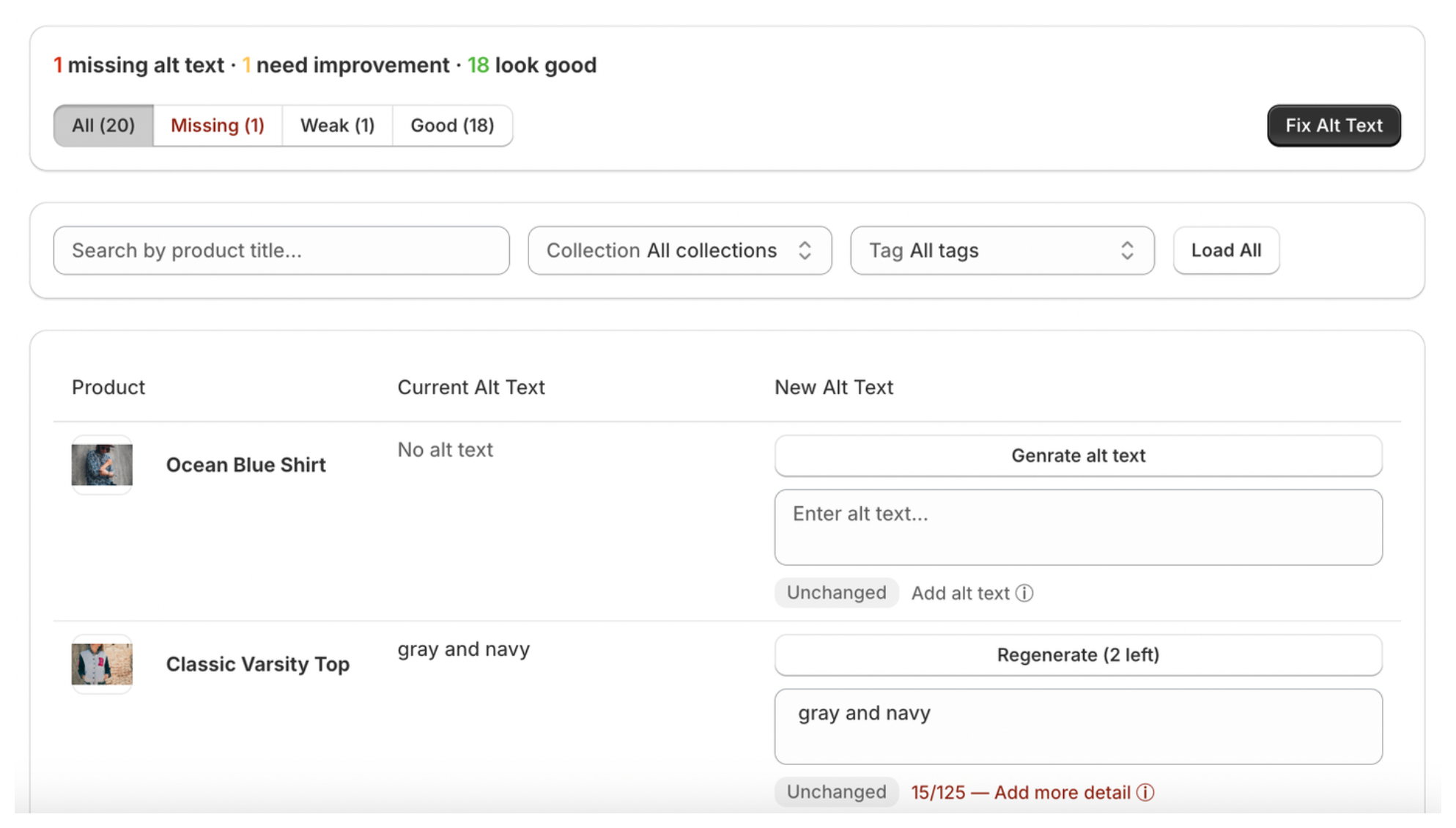
Fix Missing Alt Text First
Before worrying about quality, make sure every image has something. An empty alt text field is worse than a basic one.
If you are short on time, even just the product title is better than nothing. You can improve it later. The priority is making sure Google has at least a minimal signal for every image.
Use a Formula for Consistency
Rather than trying to write completely unique alt text for every image, use a formula that gives you a consistent and useful description across your catalog.
A simple one that works for most product types:
[Color] [Material] [Product Type], [image context]
So "navy blue cotton crew neck hoodie, flat lay on white background" or "silver hoop earrings with diamond detail, model wearing them against plain background."
Once you have a formula that fits your products, you can move through images much faster. You are not starting from scratch each time, just filling in the slots. For more detail on exactly what makes alt text good or bad and how to format it, Shopify alt text best practices has the full breakdown.
Work in Batches by Collection
Do not try to update your entire catalog at once. Pick one collection, update all the alt text for those products, and move on. Working in focused batches is more manageable and you can see progress clearly.
Most bulk editing tools let you filter by collection so you only see the products you are working on. This is much less overwhelming than scrolling through everything at once.
Build It Into Your Product Upload Process
The harder problem is keeping up with new products. If adding alt text is not part of your standard upload process, every new product will start with empty fields.
The simplest fix is to add it to your product creation checklist. Before a product goes live, alt text gets written. It becomes a step, not an afterthought.
What About AI Tools?
AI caution: Some apps promise to generate alt text for your entire catalog automatically. The problem is fully automated AI does not know your products — it writes generic descriptions based on what it can infer from the image, which often misses the specific details that matter for your customers and keywords.
A better approach is AI that generates a starting point you then review and edit before saving. You get the speed benefit without sacrificing accuracy. AltMate works this way — it looks at your actual product images and suggests alt text, but nothing goes live without your approval.